
Photo
Upsize
Enlarge low-res images 2x or 4x and keep them crisp.
Get for Mac.dmg · 363 KB · or download .zip
- Category
- Photo
- Requires
- macOS 13+
- Size
- 363 KB
- Price
- Free
Preview
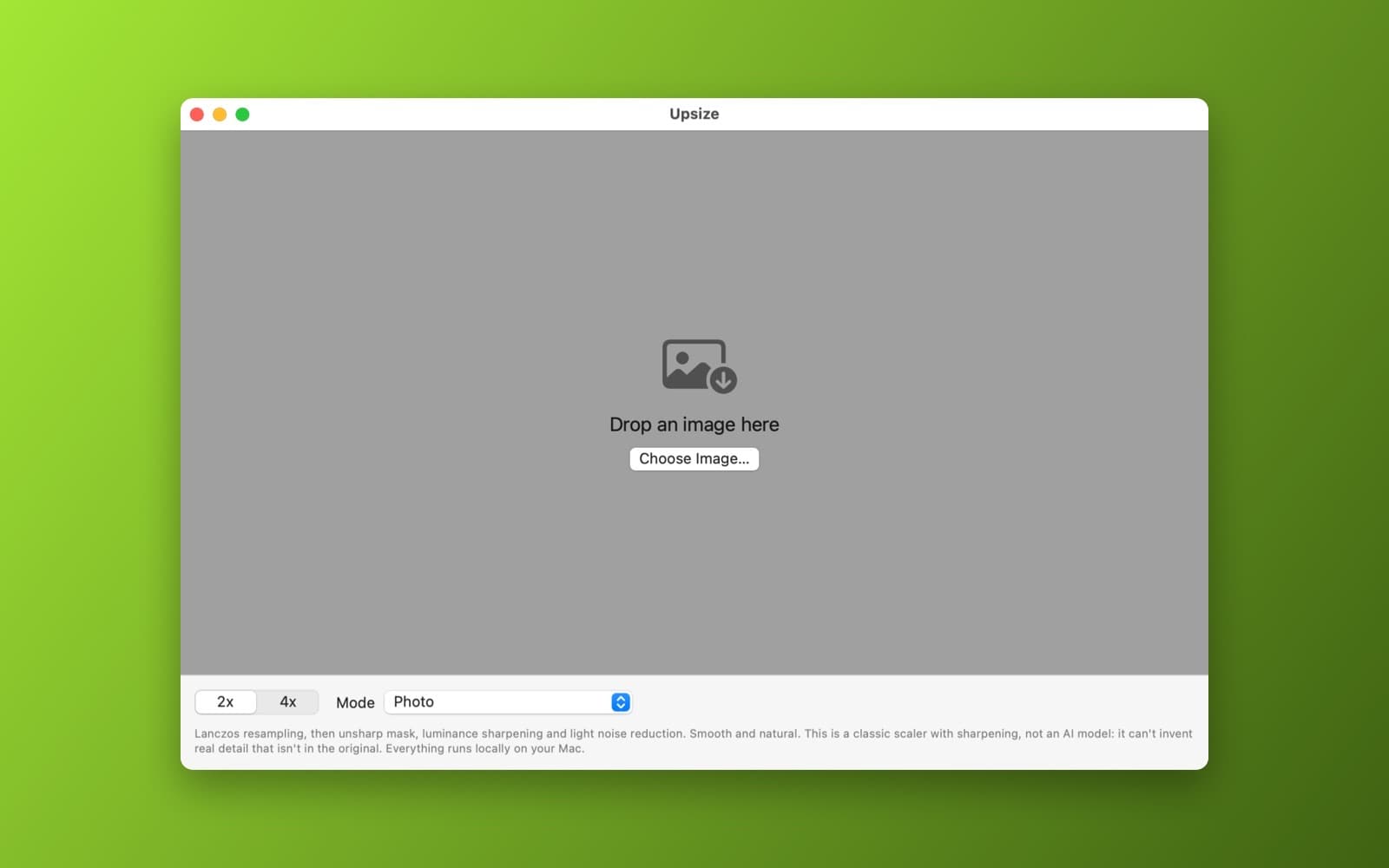
About Upsize
Upsize enlarges low-resolution images 2x or 4x and sharpens them.
What it does
- 2x or 4x. Lanczos scaling followed by edge-aware sharpening and light noise reduction in Core Image.
- Photo or pixel art. Photo mode is smooth; Pixel art mode keeps hard edges.
- Tiled processing. Large images are handled in 256 pixel tiles with an overlap, so memory stays low. There is a progress bar and a Cancel button.
- Before and after slider, output size, and save as PNG or JPEG.
Notes
This is a classic scaler with sharpening, not an AI model. It will not invent detail that is not in the image.
Information
- Developer
- SiliconDevKit (generated by AI from a prompt)
- Category
- Photo
- Compatibility
- macOS 13 or later, Apple silicon. Apple silicon Macs only (M1 or later), not Intel
- Size
- 363 KB (.dmg)
- Version
- 1.0
- Price
- Free
- Signing
- Ad-hoc signed, not notarized
The prompt behind it
This app was generated from the prompt below. Paste it into SiliconDevKit to build your own version, then change it however you like.
Build a macOS app called Upsize that enlarges low-resolution images. Drop an image on the window and pick 2x or 4x. Use Core Image: CILanczosScaleTransform followed by edge-aware sharpening (CIUnsharpMask and CISharpenLuminance) and a light noise reduction pass (CINoiseReduction), with a mode picker for Photo (smooth, natural), and Pixel art and graphics (nearest-neighbor scale, then clean up edges). Process large images in 256 by 256 tiles with a 16 pixel overlap so memory stays low, with a progress bar and a Cancel button. Show an interactive Before and After split slider that you can drag, with the output size in pixels and megabytes, and save the result as PNG or JPEG. Be honest in the UI that this is a classic scaler with sharpening, not an AI model. Everything runs locally.
Opening it for the first time
- Open the .dmg and drag Upsize onto the Applications folder.
- Open it from Applications. macOS may say it can’t check the app for malicious software. Click Done.
- Open System Settings → Privacy & Security and click Open Anyway. This is needed once. Why this happens. To share an app without the warning, see how to notarize it.


