
Media
Squish
Batch-convert images to smaller modern formats.
Get for Mac.dmg · 476 KB · or download .zip
- Category
- Media
- Requires
- macOS 13+
- Size
- 476 KB
- Price
- Free
Preview
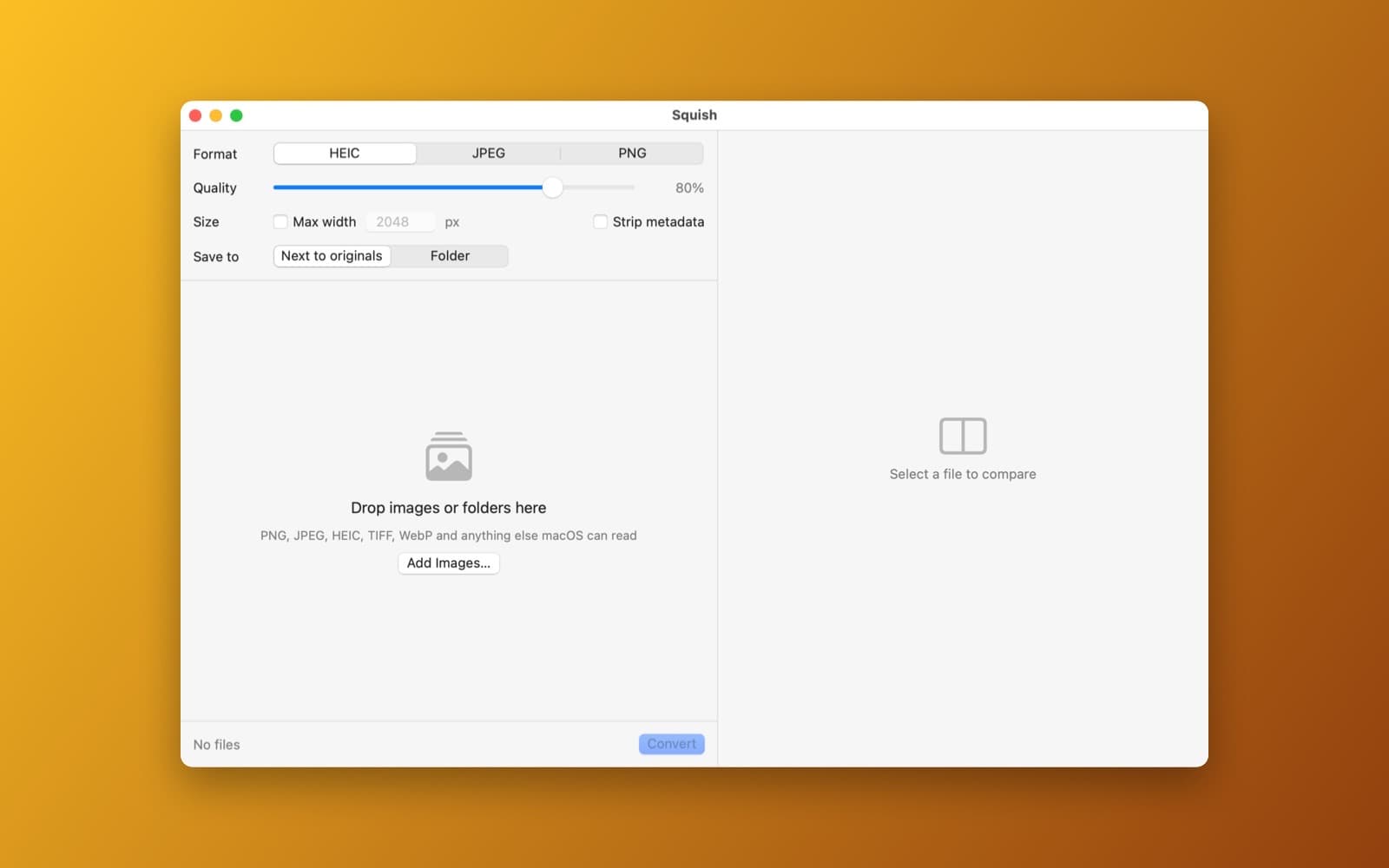
About Squish
Squish batch-converts images to smaller modern formats and shows the savings.
What it does
- Drop files or folders. PNG, JPEG, HEIC, TIFF, WebP and anything else macOS can read.
- Formats this Mac can write. It asks ImageIO which of HEIC, JPEG, PNG, AVIF, JPEG XL and WebP are available and offers only those.
- Parallel. Files convert on all CPU cores, with quality, maximum width and strip-metadata options.
- Savings and comparison. Each file shows its before and after size, and a loupe compares original and converted side by side.
Notes
Which output formats you see depends on your macOS version. Some, such as AVIF and JPEG XL, can be read but not written on older systems.
Information
- Developer
- SiliconDevKit (generated by AI from a prompt)
- Category
- Media
- Compatibility
- macOS 13 or later, Apple silicon. Apple silicon Macs only (M1 or later), not Intel
- Size
- 476 KB (.dmg)
- Version
- 1.0
- Price
- Free
- Signing
- Ad-hoc signed, not notarized
The prompt behind it
This app was generated from the prompt below. Paste it into SiliconDevKit to build your own version, then change it however you like.
Build a macOS app called Squish, a batch image converter. Drop in many images or folders (PNG, JPEG, HEIC, TIFF, WebP and anything else ImageIO can read) and convert them in parallel using all CPU cores (a TaskGroup). Use ImageIO CGImageDestination and ask CGImageDestinationCopyTypeIdentifiers which output formats this Mac can write, then offer only those among HEIC, JPEG, PNG, AVIF, JPEG XL and WebP. A quality slider, a max width option and a Strip metadata toggle. The list shows each file with its thumbnail, status and exact savings such as 4.2 MB to 290 KB (-93%), and a total at the bottom. Selecting a file opens a side-by-side comparison of original and converted with a magnifier loupe that follows the pointer. Choose the output folder or save next to the originals. Everything runs locally.
Opening it for the first time
- Open the .dmg and drag Squish onto the Applications folder.
- Open it from Applications. macOS may say it can’t check the app for malicious software. Click Done.
- Open System Settings → Privacy & Security and click Open Anyway. This is needed once. Why this happens. To share an app without the warning, see how to notarize it.


