
Audio
Speech to Text (STT)
Drop in audio or video, or record, and get a private written transcript.
- Category
- Audio
- Requires
- macOS 13+
- Size
- 1.4 MB
- Price
- Free
Preview
About Speech to Text (STT)
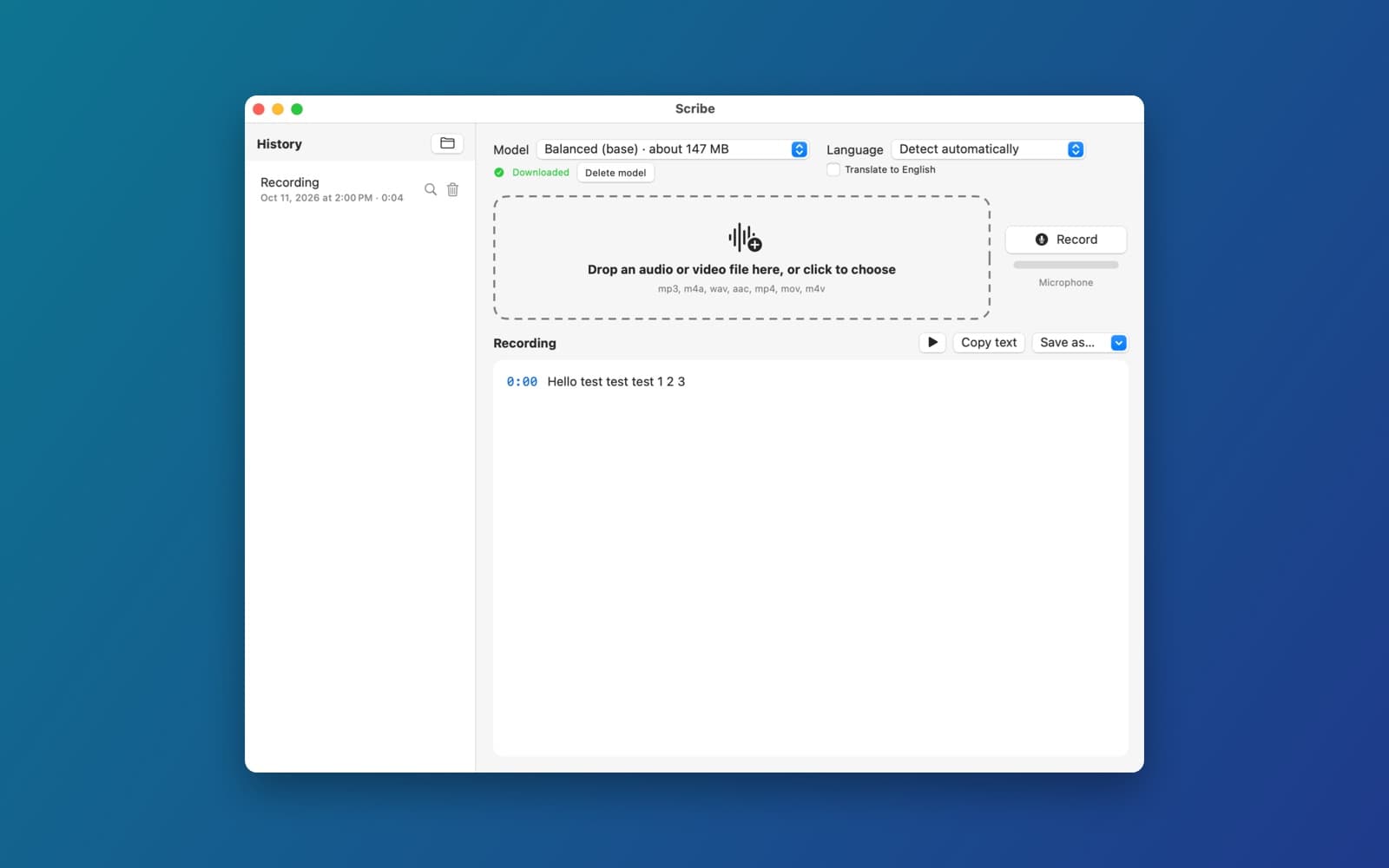
Speech to Text (STT) turns speech into written text on your Mac. Drop in an audio or video file, or record with the microphone, and it writes the transcript with timestamps. It uses the WhisperKit speech model, so the audio never leaves your Mac.
What it does
- Drop or record. Drop an mp3, m4a, wav, aac, mp4, mov or m4v file on the window, or press Record and talk. A level meter shows that the microphone is hearing you.
- Pick a model. Fast, Balanced, Accurate or Best, each with its download size. The first time you use one it downloads, with a progress bar and a Cancel button, and a Delete model button removes it again.
- Language. It can detect the language by itself, or you can choose one. A switch translates the speech to English.
- Read, play and copy. The text appears with a time at the start of each part. Play the audio, copy the text, or use Save as.
- History. Earlier transcripts are kept in a list on the left, with search and delete.
How it was made
One prompt in the SiliconDevKit desktop app, then one short follow-up. The prompt asks the builder to read the WhisperKit documentation and Apple's audio documentation before writing code. The cloud wrote the code and a Mac compiled it.
The first build could not use WhisperKit, because SiliconDevKit did not yet allow that package, and its microphone button closed the app, because the packaged app had no microphone permission text. We fixed both in SiliconDevKit. The follow-up then asked for the real WhisperKit code and a safe permission check before recording.
Notes
On first use it downloads the speech model (the Balanced one is about 147 MB), and the first time you record, macOS asks for microphone permission. The app calls itself Scribe in its window title. The screenshot shows a short test: a 4 second microphone recording that came out as "Hello test test test 1 2 3". We tested the model download, the microphone recording and that transcript. We did not test dropping files, video files, other languages, the translate switch, the larger models or the Save as formats.
Information
- Developer
- SiliconDevKit (generated by AI from a prompt)
- Category
- Audio
- Compatibility
- macOS 13 or later, Apple silicon. Apple silicon Macs only (M1 or later), not Intel
- Size
- 1.4 MB (.dmg)
- Latest version
- 1.1
- Price
- Free
- Signing
- Ad-hoc signed, not notarized
The prompt behind it
This app was generated from the prompt below. Paste it into SiliconDevKit to build your own version, then change it however you like.
Build a native Mac app called Scribe: drop in an audio or video file (or record from the microphone) and get a clean written transcript, made on this Mac. No account, no cloud, nothing leaves the computer. Use the WhisperKit Swift package (from Argmax, MIT license) for the speech to text. It is the only third-party package; everything else is Apple frameworks. RESEARCH FIRST (use WebSearch and WebFetch before you write code) Do not rely on memory. Read the WhisperKit documentation and README (the package now lives in Argmax's open-source Swift repository; find the current package name, product name and latest release tag): (1) how to add it to Package.swift with an exact version and which product to import; (2) how to load a model by name and where it downloads the model files (and the size of the tiny, base, small and large-v3 turbo models); (3) how to transcribe an audio file and how to get segments with start and end times and optional word timestamps; (4) how to report download and transcription progress; (5) the minimum macOS version of the package, and set the app's platform to at least that. Also read Apple's documentation for AVAudioEngine microphone capture and AVAudioFile/AVAssetExportSession (to pull the audio track out of a video file and convert to 16 kHz mono). Where a page disagrees with this prompt, follow the page and say what changed. WHAT THE APP DOES - One window. A big drop zone ("Drop an audio or video file here, or click to choose"), plus a Record button with a level meter. Accept mp3, m4a, wav, aac, mp4, mov and m4v. For video, extract the audio first. - A model picker with plain labels: "Fast (tiny)", "Balanced (base)", "Accurate (small)", "Best (large-v3 turbo)", each with its download size. The first use of a model downloads it with a progress bar, speed and Cancel; models are stored in Application Support/Scribe/Models, kept for next time, and a "Delete model" button removes one. Default to Balanced. - A language picker with "Detect automatically" as the default, and a switch "Translate to English". - Transcribing runs off the main thread with a real progress bar and the elapsed time. The transcript appears in an editable text view as it arrives, with a timestamp at the start of each paragraph. Clicking a timestamp plays the audio from there (AVAudioPlayer) and the current segment is highlighted while playing. - Export and copy: Copy text, Save as .txt, .srt, .vtt and .md (with timestamps as headings). Subtitle files use the segment times from the model, never invented ones. - A history list of earlier transcripts in Application Support/Scribe/History (the text and times, not the audio), with delete and "Open in Finder". TRUST AND ERRORS - A short first-run card: what is stored (models, transcripts), that audio is never uploaded, and the microphone permission with a button that opens the right System Settings pane (NSMicrophoneUsageDescription in Info.plist). - Friendly errors with a Show Details box: no network for the model download, a full disk, a file with no audio track, an unsupported file, a cancelled transcription (keep the partial text) and a corrupt model (delete it and offer to download again). Never show a fake transcript. QUALITY - macOS 14 or later on Apple silicon (raise it if the package needs more), Swift 5 language mode, SwiftUI with ObservableObject and @Published. No Xcode project, no asset catalog. Modular: ModelStore, Transcriber, AudioPrep, Recorder, TranscriptStore and the views. Heavy work in Swift concurrency off the main thread. - The code is compiled later on the user's Mac, not here: check every initializer, argument label and optional, with no force-unwraps. Do not fake anything. - In your reply, say in a few sentences what you built, what the lookups changed (the package version, the model names, the API calls), and what you could not test: model downloads, transcription accuracy and speed, microphone recording, video audio extraction and the subtitle files were not run.
What it cost
Every AI run that made this demo, one per line. Model: Claude Sonnet 5.5. Tokens are shown as (in / out). “In” counts everything the model read, including text it had already seen in the session at a reduced price.
| Initial prompt(769k in / 53k out) | 104 credits | |
| + | Follow-up: real WhisperKit and a safe microphone check(614k in / 8k out) | 28 credits |
| = | Total(1.38M in / 61k out) | 132 credits |
Credits are what a build uses on your plan. This counts AI usage only: hosting and the Mac that compiled it are not included.
Version tree
Every change to this app is a new version. Use any build as a template to start your own copy from it; forks that their makers shared appear as branches.
Version 1.0Oct 11, 2026
Build a native Mac app called Scribe: drop in an audio or video file (or record from the microphone) and get a clean written transcript, made on this Mac. No account, no cloud, nothing leaves the computer. Use the WhisperKit Swift package (from Argmax, MIT license) for the speech to text. It is the only third-party package; everything else is Apple frameworks. RESEARCH FIRST (use WebSearch and WebFetch before you write code) Do not rely on memory. Read the WhisperKit documentation and README (the package now lives in Argmax's open-source Swift repository; find the current package name, product name and latest release tag): (1) how to add it to Package.swift with an exact version and which product to import; (2) how to load a model by name and where it downloads the model files (and the size of the tiny, base, small and large-v3 turbo models); (3) how to transcribe an audio file and how to get segments with start and end times and optional word timestamps; (4) how to report download and transcription progress; (5) the minimum macOS version of the package, and set the app's platform to at least that. Also read Apple's documentation for AVAudioEngine microphone capture and AVAudioFile/AVAssetExportSession (to pull the audio track out of a video file and convert to 16 kHz mono). Where a page disagrees with this prompt, follow the page and say what changed. WHAT THE APP DOES - One window. A big drop zone ("Drop an audio or video file here, or click to choose"), plus a Record button with a level meter. Accept mp3, m4a, wav, aac, mp4, mov and m4v. For video, extract the audio first. - A model picker with plain labels: "Fast (tiny)", "Balanced (base)", "Accurate (small)", "Best (large-v3 turbo)", each with its download size. The first use of a model downloads it with a progress bar, speed and Cancel; models are stored in Application Support/Scribe/Models, kept for next time, and a "Delete model" button removes one. Default to Balanced. - A language picker with "Detect automatically" as the default, and a switch "Translate to English". - Transcribing runs off the main thread with a real progress bar and the elapsed time. The transcript appears in an editable text view as it arrives, with a timestamp at the start of each paragraph. Clicking a timestamp plays the audio from there (AVAudioPlayer) and the current segment is highlighted while playing. - Export and copy: Copy text, Save as .txt, .srt, .vtt and .md (with timestamps as headings). Subtitle files use the segment times from the model, never invented ones. - A history list of earlier transcripts in Application Support/Scribe/History (the text and times, not the audio), with delete and "Open in Finder". TRUST AND ERRORS - A short first-run card: what is stored (models, transcripts), that audio is never uploaded, and the microphone permission with a button that opens the right System Settings pane (NSMicrophoneUsageDescription in Info.plist). - Friendly errors with a Show Details box: no network for the model download, a full disk, a file with no audio track, an unsupported file, a cancelled transcription (keep the partial text) and a corrupt model (delete it and offer to download again). Never show a fake transcript. QUALITY - macOS 14 or later on Apple silicon (raise it if the package needs more), Swift 5 language mode, SwiftUI with ObservableObject and @Published. No Xcode project, no asset catalog. Modular: ModelStore, Transcriber, AudioPrep, Recorder, TranscriptStore and the views. Heavy work in Swift concurrency off the main thread. - The code is compiled later on the user's Mac, not here: check every initializer, argument label and optional, with no force-unwraps. Do not fake anything. - In your reply, say in a few sentences what you built, what the lookups changed (the package version, the model names, the API calls), and what you could not test: model downloads, transcription accuracy and speed, microphone recording, video audio extraction and the subtitle files were not run.
Drop in audio or video, or record, and get a private on-device written transcript.
Version 1.1Oct 11, 2026
Fix two things in this app (Scribe). Keep everything else as it is. 1. Use the real WhisperKit package. Last time the build said "The WhisperKit package (argmax-oss-swift, product WhisperKit) could not be imported", so the app used a stand-in. WhisperKit is now allowed: Package.swift lists it, so use `import WhisperKit` and do the real transcription with it. Remove the "could not be imported" message and any stand-in or placeholder transcription code, so the app never shows fake text. Read the WhisperKit documentation again (search the web) for the current calls: loading a model by name, where its model files are stored, how to transcribe an audio file, and how to get the timed segments. The model download must keep its progress bar, speed and Cancel, and the Delete model button must still work. If the model cannot load, say why in plain words with a Show Details box. 2. The Microphone button closes the whole app. The app's Info.plist now has the microphone permission text (NSMicrophoneUsageDescription), which was the likely cause. Also make the code safe so it can never crash from this: before recording, check AVCaptureDevice.authorizationStatus(for: .audio). If it is not determined, call AVCaptureDevice.requestAccess(for: .audio) and wait for the answer. If it is denied or restricted, do not start the audio engine; show a clear message with a button that opens System Settings, Privacy and Security, Microphone (the x-apple.systempreferences:com.apple.preference.security?Privacy_Microphone address). Check that the Mac has an input device, and that the input format has a sample rate above zero, before installing a tap. Install the tap once, remove it when stopping, and stop the engine on every error path. Record to a temporary file, then transcribe that file with WhisperKit like a dropped file. Show a level meter while recording and a Stop button. Reply in a few sentences: what you changed, what you looked up, and what you could not test (the model download, a real transcription and the microphone were not run).
Drop in audio or video, or record, and get a private on-device written transcript.
Opening it for the first time
- Open the .dmg and drag Speech to Text (STT) onto the Applications folder.
- Open it from Applications. macOS may say it can’t check the app for malicious software. Click Done.
- Open System Settings → Privacy & Security and click Open Anyway. This is needed once. Why this happens. To share an app without the warning, see how to notarize it.
You might also like
 Get
GetPlayTube
Paste a video link and watch it in a clean player, with no ads.
 Get
GetAdMute
Listens to your Mac's audio and mutes the ads, then brings the sound back.
 Get
GetToob-Downer
Paste a video link and save the video to your Mac, with a queue to keep track.
 Get
GetAgent Swarm
Send one task to Claude, Gemini and Hermes at once.