
Media
Rewrap
Change a video or audio file's format without losing quality.
Get for Mac.dmg · 452 KB · or download .zip
- Category
- Media
- Requires
- macOS 13+
- Size
- 452 KB
- Price
- Free
Preview
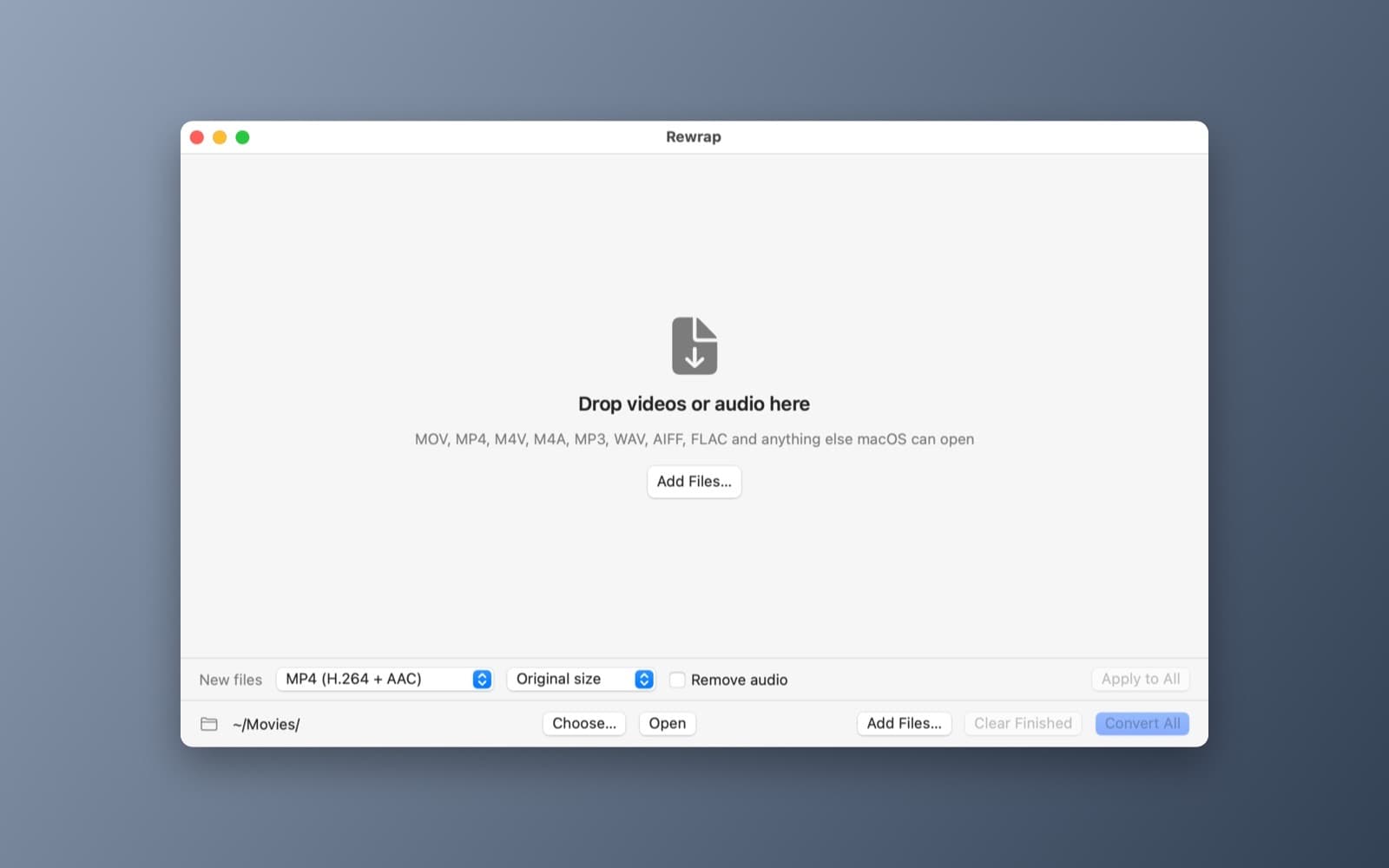
About Rewrap
Rewrap changes the format of video and audio files, without re-encoding when it can.
What it does
- Batch queue. Drop files in and each one gets a progress bar.
- Fast path. When the tracks are already compatible, the container is rewrapped in about a second with no quality loss.
- Re-encode path. Otherwise it transcodes with AVFoundation, at the original size, 1080p or 720p.
- Audio tools. Extract the audio only, or strip it.
Notes
It uses macOS's own media support, so MKV, AVI and WebM files are not supported and show a clear error.
Information
- Developer
- SiliconDevKit (generated by AI from a prompt)
- Category
- Media
- Compatibility
- macOS 13 or later, Apple silicon. Apple silicon Macs only (M1 or later), not Intel
- Size
- 452 KB (.dmg)
- Version
- 1.0
- Price
- Free
- Signing
- Ad-hoc signed, not notarized
The prompt behind it
This app was generated from the prompt below. Paste it into SiliconDevKit to build your own version, then change it however you like.
Build a macOS app called Rewrap, a video and audio converter built on AVFoundation. Drop in files (.mov, .mp4, .m4v, .m4a, .mp3, .wav, .aiff, .flac and anything else AVAsset can open) to build a batch queue with a progress bar per file. For each file pick a target: MP4 (H.264 and AAC), MOV, M4A, or MP3-quality AAC audio only (Audio only extracts the sound; a Remove audio toggle strips it). Use a fast path when the tracks are already compatible: AVAssetExportPresetPassthrough rewraps the container in about a second with no quality loss. Otherwise transcode with AVAssetExportSession presets or AVAssetReader and AVAssetWriter, offering Original, 1080p and 720p sizes. Say clearly in the UI which files are rewrapped and which are re-encoded, and show a clear error for formats macOS cannot open (such as MKV, AVI and WebM). Pick the output folder, and reveal finished files in Finder.
Opening it for the first time
- Open the .dmg and drag Rewrap onto the Applications folder.
- Open it from Applications. macOS may say it can’t check the app for malicious software. Click Done.
- Open System Settings → Privacy & Security and click Open Anyway. This is needed once. Why this happens. To share an app without the warning, see how to notarize it.


