
Photo
Rawlite
A fast RAW photo editor that never touches your originals.
- Category
- Photo
- Requires
- macOS 13+
- Size
- 680 KB
- Price
- Free
Preview
About Rawlite
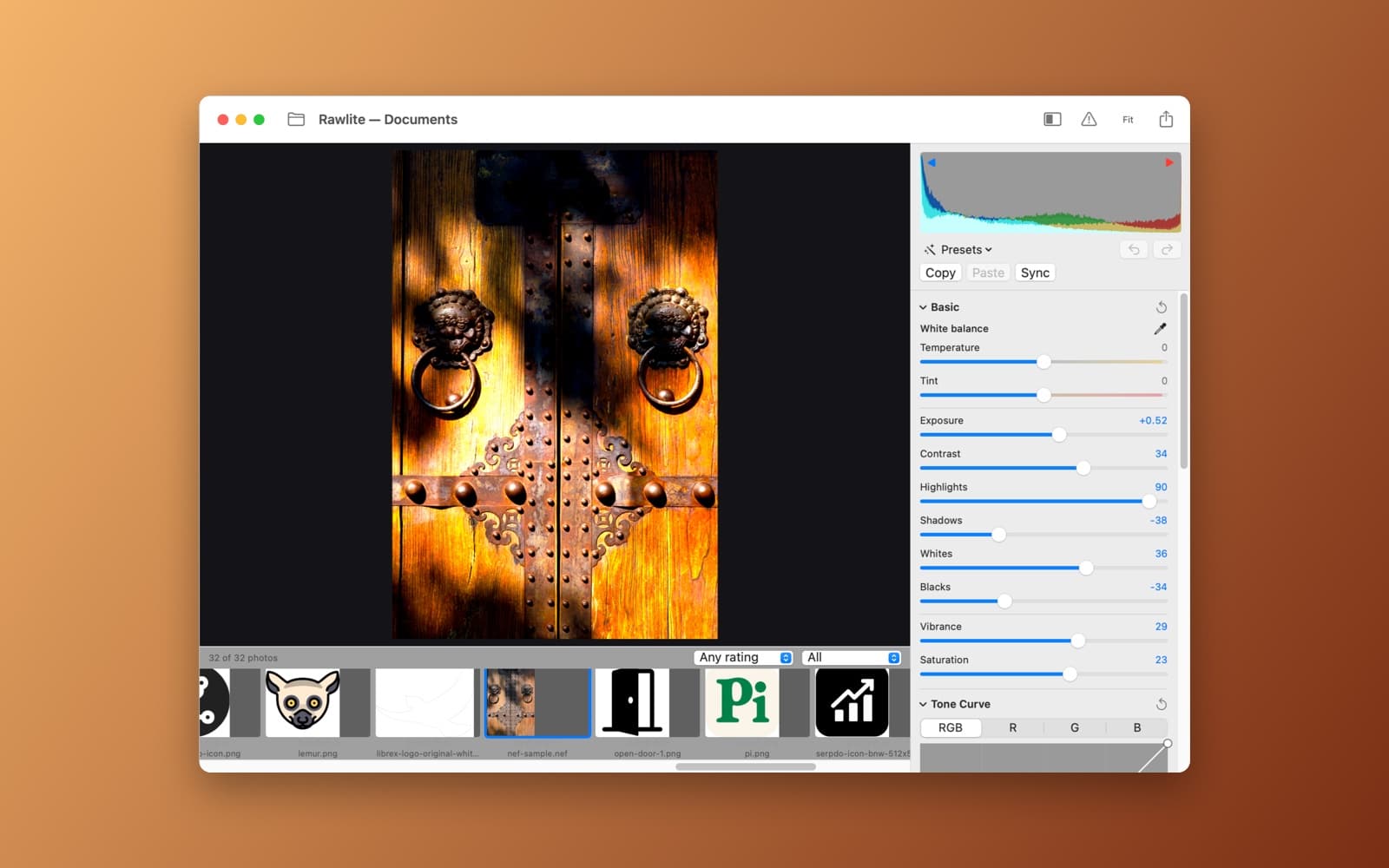
Rawlite opens a folder of photos, RAW files included, and lets you edit them with sliders, a tone curve and a live histogram. Your edits are saved next to each photo in a small file, so the original is never changed.
What it does
- Browse a folder. Open a folder or drop one on the window. A filmstrip shows thumbnails with star ratings, pick and reject flags, and filters for rating and flag.
- Edit. Basic (white balance with an eyedropper, exposure, contrast, highlights, shadows, whites, blacks, vibrance, saturation), tone curve with red, green and blue channels, and more sections for color, detail, lens and crop.
- Live histogram. Warns where highlights or shadows are clipped, and J shows the clipped areas on the photo.
- Work faster. Undo and redo, a reset for each section, presets, and Copy, Paste and Sync to carry one photo's settings to others.
- Export. Save one photo or a selection, with a filename template.
- Reads RAW through macOS. It uses the RAW decoder built into macOS, and also opens JPEG, HEIC and PNG.
- Private. Nothing is uploaded.
Notes
The RAW decoding is the one built into macOS, so colors can differ a little from the camera maker's own software. This is a first version, so test it on copies of photos you care about.
Information
- Developer
- SiliconDevKit (generated by AI from a prompt)
- Category
- Photo
- Compatibility
- macOS 13 or later, Apple silicon. Apple silicon Macs only (M1 or later), not Intel
- Size
- 680 KB (.dmg)
- Latest version
- 1.0
- Price
- Free
- Signing
- Ad-hoc signed, not notarized
The prompt behind it
This app was generated from the prompt below. Paste it into SiliconDevKit to build your own version, then change it however you like.
Build a native macOS SwiftUI app called Rawlite, a fast, non-destructive RAW photo editor. Open a folder of photos with the Open Folder button or by dragging a folder or files onto the window. Decode RAW files (CR2, CR3, NEF, ARW, DNG, RAF, ORF and RW2) with CIRAWFilter, and also open JPEG, HEIC and PNG. The window has three areas: a filmstrip along the bottom with thumbnails (generated in the background and cached on disk) and 0 to 5 star ratings (keys 0 to 5), pick and reject flags (P and X), and a filter for rating and flag; a large preview in the middle with pinch zoom, a 100% view on double click, pan, and a before and after toggle (backslash key); and an adjustments sidebar on the right. Render the preview with Core Image on a Metal-backed MTKView so slider changes feel instant, and run the full-resolution render on a background queue for export. Adjustments, in collapsible sections: Basic (exposure, contrast, highlights, shadows, whites, blacks, temperature and tint with a white balance eyedropper, vibrance, saturation), Tone curve (an editable curve with draggable points, plus RGB channels), HSL (hue, saturation and luminance for 8 color ranges, built from CIColorCube), Detail (sharpening with amount and radius, luminance and color noise reduction using CINoiseReduction), Lens (vignette and a manual distortion slider), Crop and rotate (drag handles, aspect ratio presets, straighten angle, flip) and RAW decode options (noise reduction, moire reduction, and the camera's embedded profile). Show a live histogram above the sidebar, drawn with CIAreaHistogram and Accelerate, with clipping warnings for highlights and shadows (J key). Keep every edit non-destructive: store the settings for each photo in a small sidecar JSON file next to the image (photo.rawlight.json) and never touch the original. Add undo and redo (Cmd+Z and Shift+Cmd+Z), a reset button for each section, copy settings and paste settings between photos, sync settings to the selected photos, and a handful of built-in presets (Neutral, Punchy, Matte, Black and white, Warm film) that can be saved as new ones. Export one photo or a whole selection to JPEG, TIFF or PNG with a quality slider, a long-edge resize option, an sRGB or Display P3 color space choice, and a filename template, using ImageIO. Include a small EXIF panel (camera, lens, ISO, aperture, shutter speed, focal length, date) read with ImageIO. Everything runs locally and nothing is uploaded. Be honest in the UI that the RAW decoding is macOS's built-in decoder, so the results can differ from the camera maker's own software.
What it cost
The cost of this demo was not recorded in our usage log. Demos built through the live build system show every run with its tokens and cost.
Version tree
Every change to this app is a new version. Use any build as a template to start your own copy from it; forks that their makers shared appear as branches.
Version 1.0Oct 7, 2026
Build a native macOS SwiftUI app called Rawlite, a fast, non-destructive RAW photo editor. Open a folder of photos with the Open Folder button or by dragging a folder or files onto the window. Decode RAW files (CR2, CR3, NEF, ARW, DNG, RAF, ORF and RW2) with CIRAWFilter, and also open JPEG, HEIC and PNG. The window has three areas: a filmstrip along the bottom with thumbnails (generated in the background and cached on disk) and 0 to 5 star ratings (keys 0 to 5), pick and reject flags (P and X), and a filter for rating and flag; a large preview in the middle with pinch zoom, a 100% view on double click, pan, and a before and after toggle (backslash key); and an adjustments sidebar on the right. Render the preview with Core Image on a Metal-backed MTKView so slider changes feel instant, and run the full-resolution render on a background queue for export. Adjustments, in collapsible sections: Basic (exposure, contrast, highlights, shadows, whites, blacks, temperature and tint with a white balance eyedropper, vibrance, saturation), Tone curve (an editable curve with draggable points, plus RGB channels), HSL (hue, saturation and luminance for 8 color ranges, built from CIColorCube), Detail (sharpening with amount and radius, luminance and color noise reduction using CINoiseReduction), Lens (vignette and a manual distortion slider), Crop and rotate (drag handles, aspect ratio presets, straighten angle, flip) and RAW decode options (noise reduction, moire reduction, and the camera's embedded profile). Show a live histogram above the sidebar, drawn with CIAreaHistogram and Accelerate, with clipping warnings for highlights and shadows (J key). Keep every edit non-destructive: store the settings for each photo in a small sidecar JSON file next to the image (photo.rawlight.json) and never touch the original. Add undo and redo (Cmd+Z and Shift+Cmd+Z), a reset button for each section, copy settings and paste settings between photos, sync settings to the selected photos, and a handful of built-in presets (Neutral, Punchy, Matte, Black and white, Warm film) that can be saved as new ones. Export one photo or a whole selection to JPEG, TIFF or PNG with a quality slider, a long-edge resize option, an sRGB or Display P3 color space choice, and a filename template, using ImageIO. Include a small EXIF panel (camera, lens, ISO, aperture, shutter speed, focal length, date) read with ImageIO. Everything runs locally and nothing is uploaded. Be honest in the UI that the RAW decoding is macOS's built-in decoder, so the results can differ from the camera maker's own software.
A fast, non-destructive RAW photo editor with sidecar edits, curves, HSL, crop and batch export.
Opening it for the first time
- Open the .dmg and drag Rawlite onto the Applications folder.
- Open it from Applications. macOS may say it can’t check the app for malicious software. Click Done.
- Open System Settings → Privacy & Security and click Open Anyway. This is needed once. Why this happens. To share an app without the warning, see how to notarize it.


