
Productivity
PageLens
Type what you want to do in your browser, and PageLens clicks, scrolls, reads and finds it for you.
- Category
- Productivity
- Requires
- macOS 13+
- Size
- 716 KB
- Price
- Free
Preview
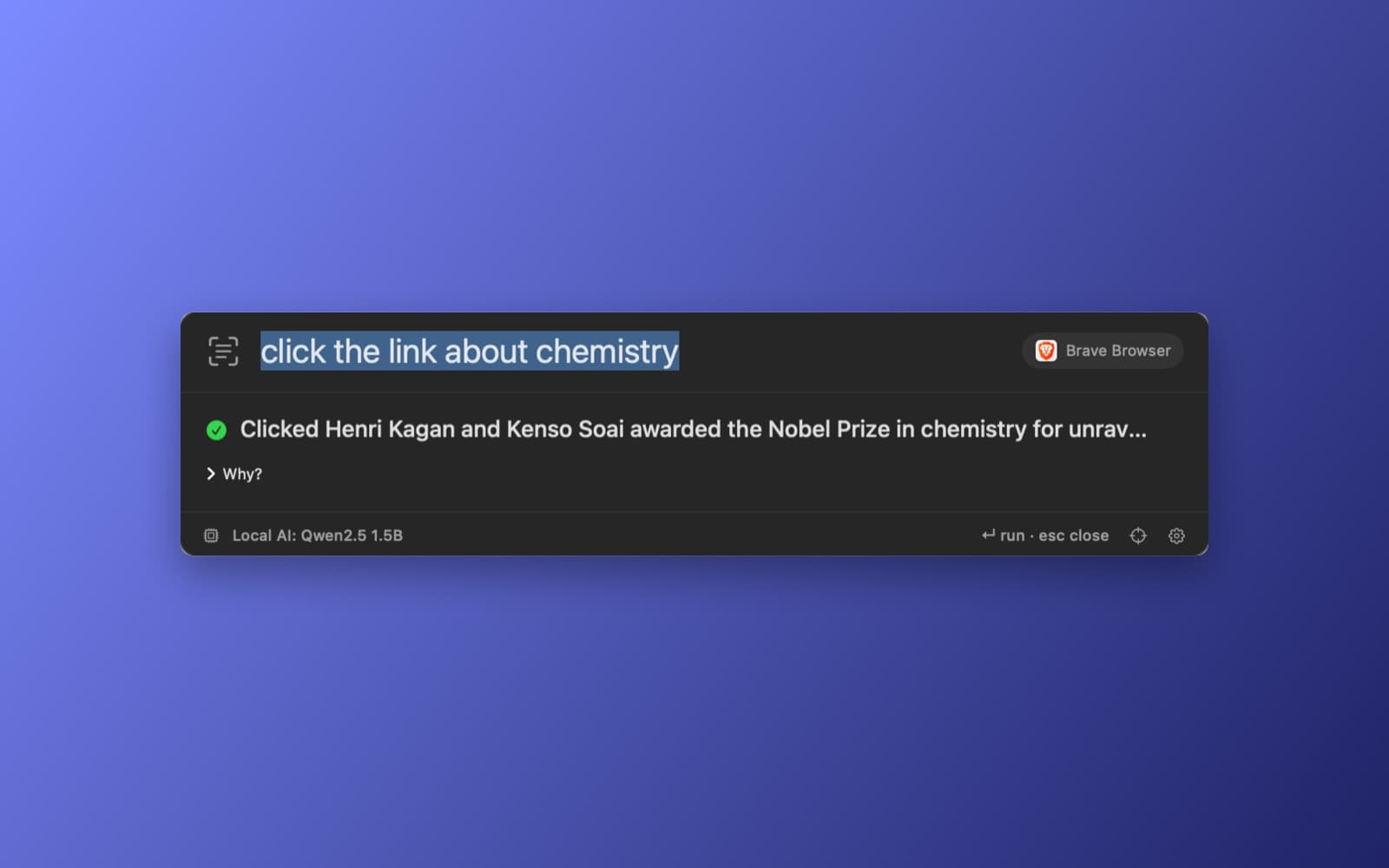
About PageLens
PageLens is a small command palette that opens over your browser with a hotkey. Type something like "click the link about chemistry" or "summarize this page", and it does it in the page you have open, using macOS Accessibility. It works with Safari, Chrome, Firefox, Arc, Brave and Edge, and needs no browser extension.
What it does
- Click anything. Describe a button or link in plain words and PageLens finds the best match and presses it. It shows what it chose, and a Why? panel explains the pick.
- Read and ask. Read the page, summarize it, find the refund policy, or ask what it says about pricing. Answers come only from the page's text on your screen.
- Scroll, type and navigate. Scroll, fill in a field, copy, paste, go back or forward, reload, and switch tabs.
- Asks before anything risky. Placing an order or submitting a form needs your OK first. Reading, scrolling and finding run straight away.
- Local AI. It uses Apple Intelligence when your Mac has it. Otherwise one button downloads a small free model, Qwen2.5 1.5B, once from Hugging Face and runs it on your Mac. Clicking, scrolling and typing are done by plain Swift code, and the model only works out what you meant.
- Private. No account, no analytics, and page text is kept in memory only and never uploaded.
Notes
PageLens needs Accessibility permission, and the app walks you through it on first launch. The model download (about 1 GB) is the only network use and it is optional. Without a model it falls back to simple text matching. A small model can pick the wrong element, so check the confirmation before it clicks anything that matters.
Information
- Developer
- SiliconDevKit (generated by AI from a prompt)
- Category
- Productivity
- Compatibility
- macOS 13 or later, Apple silicon. Apple silicon Macs only (M1 or later), not Intel
- Size
- 716 KB (.dmg)
- Latest version
- 1.1
- Price
- Free
- Signing
- Ad-hoc signed, not notarized
The prompt behind it
This app was generated from the prompt below. Paste it into SiliconDevKit to build your own version, then change it however you like.
Build a polished native macOS Swift app called **PageLens**: an on-device AI assistant that can read and control the currently active browser using the macOS Accessibility API. ## Core concept The user presses a global hotkey and types commands like: * "Click Sign Up" * "Click the first Buy button" * "Click the button next to Pricing" * "Read this page" * "Summarize this page" * "Find the refund policy" * "What does this page say about pricing?" * "Scroll down" * "Scroll to the reviews" * "Go back" * "Go forward" * "Open the first link mentioning GitHub" * "Fill in my email" * "Select all the text in this field" * "Copy the article text" * "Find every occurrence of 'Apple'" * "What buttons are available here?" The app should translate natural-language commands into actions against the browser's Accessibility tree. ## Essential features ### 1. Click Anything Command: **"Click _____"** The AI searches the current Accessibility tree for the best matching element and clicks it. Examples: * "Click Login" * "Click Buy Now" * "Click the third result" * "Click the link about pricing" Show the matched element before executing when ambiguity exists. ### 2. Read Page Extract meaningful visible content from the Accessibility tree and present a clean text representation. Ignore irrelevant browser chrome, duplicate elements, hidden elements, and decorative UI where possible. ### 3. Ask About Page Allow questions such as: * "What is this website?" * "How much does this cost?" * "Who wrote this?" * "What are the requirements?" * "Summarize the reviews." Answers must be grounded exclusively in the locally extracted page content. ### 4. Find Natural-language search: * "Find the refund policy" * "Where does it mention pricing?" * "Find the contact information" Highlight/focus the matching Accessibility element when possible. ### 5. Scroll Support: * "Scroll down" * "Scroll up" * "Scroll to the reviews" * "Scroll to pricing" * "Scroll to the bottom" Use Accessibility actions where available and fall back to keyboard/scroll events when appropriate. ### 6. Type / Fill Support commands such as: * "Enter [john@example.com](mailto:john@example.com)" * "Type my name into the name field" * "Fill the search box with Mac apps" * "Replace this text with..." Identify the appropriate input field through the Accessibility tree. Never invent personal information. ### 7. Keyboard Actions Support safe commands: * Copy * Paste * Select all * Enter * Escape * Tab * Delete * Arrow keys ### 8. Links Commands: * "Open the first link" * "Open the GitHub link" * "Open this article" * "Open every link mentioning X" ### 9. Browser Navigation Support: * Back * Forward * Reload * New tab * Close tab * Switch tab Use browser Accessibility APIs where possible and standard keyboard shortcuts as fallback. ### 10. Page Element Inspector Include a developer/debug mode showing: * Accessibility role * Element title * Value * Description * Position * Size * Enabled/disabled state * Actions supported * Parent/child hierarchy Allow clicking an element in the browser and seeing its Accessibility representation when technically possible. ## AI architecture Use **only on-device AI**. No OpenAI API. No Anthropic API. No Gemini. No server. No external inference. Use Apple's available on-device Foundation Models APIs where appropriate. Keep deterministic operations deterministic. Do NOT ask the LLM to perform tasks that can be handled directly by Accessibility APIs. For example: **User:** "Click Buy Now" → extract Accessibility tree → AI resolves "Buy Now" to an element → deterministic Swift code calls the element's AXPress action. The AI should primarily perform: 1. Intent understanding 2. Element matching 3. Ambiguity resolution 4. Page-content reasoning Swift should perform: 1. Accessibility traversal 2. Element lookup 3. Clicking 4. Typing 5. Scrolling 6. Keyboard events 7. Browser interaction ## Safety For potentially destructive or consequential actions, require confirmation: * Purchasing * Submitting forms * Sending messages * Deleting content * Closing unsaved work * Changing account/security settings Example: > **Click "Place Order"?** > This may submit a purchase. > > [Cancel] [Click] Safe actions such as reading, scrolling, finding, and navigating can execute immediately. ## Privacy * Accessibility permission required. * Explain exactly why it is needed. * No telemetry. * No analytics. * No cloud processing. * No page content uploaded anywhere. * No screenshots required. * Keep extracted content in memory only. * Never persist browser content unless explicitly requested. ## UI Use native SwiftUI with a compact Raycast-like command palette. Main interface: **What do you want to do?** `Click the pricing button` Below it, show contextual suggestions: `Read page` · `Summarize` · `Find...` · `Click...` · `Scroll...` After execution, show a concise result: ✓ Clicked **Start Free Trial** Include a small expandable "Why?" / debug panel showing which Accessibility element was selected. ## Browser support Initially support: * Safari * Chrome * Firefox * Arc * Brave * Edge Design the Accessibility layer so browser-specific quirks can be handled by adapters without changing the AI/action architecture. ## Technical requirements * Swift * SwiftUI * ApplicationServices / AXUIElement * Native macOS app * Apple Silicon optimized * Accessibility permission onboarding * Global keyboard shortcut * No browser extension * No server * No API keys * On-device AI only * Clean modular architecture * Robust handling of stale/inaccessible AXUIElements * Never crash when Accessibility information is incomplete The final product should feel like **"Raycast for controlling whatever is currently open in your browser"**, but powered entirely by the Mac's local Accessibility APIs and on-device AI. Instead of hand-written rules, use a small free open model for intent understanding and element matching: Apple's on-device Foundation Models when available, otherwise a one-time optional download of Qwen2.5 1.5B Instruct (Q4_K_M GGUF) from Hugging Face, run locally with a built-in GGUF runtime written in Swift. Keep a plain text-matching fallback for when no model is installed.
What it cost
The cost of this demo was not recorded in our usage log. Demos built through the live build system show every run with its tokens and cost.
Version tree
Every change to this app is a new version. Use any build as a template to start your own copy from it; forks that their makers shared appear as branches.
Version 1.0Oct 7, 2026
Build a polished native macOS Swift app called **PageLens**: an on-device AI assistant that can read and control the currently active browser using the macOS Accessibility API. ## Core concept The user presses a global hotkey and types commands like: * "Click Sign Up" * "Click the first Buy button" * "Click the button next to Pricing" * "Read this page" * "Summarize this page" * "Find the refund policy" * "What does this page say about pricing?" * "Scroll down" * "Scroll to the reviews" * "Go back" * "Go forward" * "Open the first link mentioning GitHub" * "Fill in my email" * "Select all the text in this field" * "Copy the article text" * "Find every occurrence of 'Apple'" * "What buttons are available here?" The app should translate natural-language commands into actions against the browser's Accessibility tree. ## Essential features ### 1. Click Anything Command: **"Click _____"** The AI searches the current Accessibility tree for the best matching element and clicks it. Examples: * "Click Login" * "Click Buy Now" * "Click the third result" * "Click the link about pricing" Show the matched element before executing when ambiguity exists. ### 2. Read Page Extract meaningful visible content from the Accessibility tree and present a clean text representation. Ignore irrelevant browser chrome, duplicate elements, hidden elements, and decorative UI where possible. ### 3. Ask About Page Allow questions such as: * "What is this website?" * "How much does this cost?" * "Who wrote this?" * "What are the requirements?" * "Summarize the reviews." Answers must be grounded exclusively in the locally extracted page content. ### 4. Find Natural-language search: * "Find the refund policy" * "Where does it mention pricing?" * "Find the contact information" Highlight/focus the matching Accessibility element when possible. ### 5. Scroll Support: * "Scroll down" * "Scroll up" * "Scroll to the reviews" * "Scroll to pricing" * "Scroll to the bottom" Use Accessibility actions where available and fall back to keyboard/scroll events when appropriate. ### 6. Type / Fill Support commands such as: * "Enter [john@example.com](mailto:john@example.com)" * "Type my name into the name field" * "Fill the search box with Mac apps" * "Replace this text with..." Identify the appropriate input field through the Accessibility tree. Never invent personal information. ### 7. Keyboard Actions Support safe commands: * Copy * Paste * Select all * Enter * Escape * Tab * Delete * Arrow keys ### 8. Links Commands: * "Open the first link" * "Open the GitHub link" * "Open this article" * "Open every link mentioning X" ### 9. Browser Navigation Support: * Back * Forward * Reload * New tab * Close tab * Switch tab Use browser Accessibility APIs where possible and standard keyboard shortcuts as fallback. ### 10. Page Element Inspector Include a developer/debug mode showing: * Accessibility role * Element title * Value * Description * Position * Size * Enabled/disabled state * Actions supported * Parent/child hierarchy Allow clicking an element in the browser and seeing its Accessibility representation when technically possible. ## AI architecture Use **only on-device AI**. No OpenAI API. No Anthropic API. No Gemini. No server. No external inference. Use Apple's available on-device Foundation Models APIs where appropriate. Keep deterministic operations deterministic. Do NOT ask the LLM to perform tasks that can be handled directly by Accessibility APIs. For example: **User:** "Click Buy Now" → extract Accessibility tree → AI resolves "Buy Now" to an element → deterministic Swift code calls the element's AXPress action. The AI should primarily perform: 1. Intent understanding 2. Element matching 3. Ambiguity resolution 4. Page-content reasoning Swift should perform: 1. Accessibility traversal 2. Element lookup 3. Clicking 4. Typing 5. Scrolling 6. Keyboard events 7. Browser interaction ## Safety For potentially destructive or consequential actions, require confirmation: * Purchasing * Submitting forms * Sending messages * Deleting content * Closing unsaved work * Changing account/security settings Example: > **Click "Place Order"?** > This may submit a purchase. > > [Cancel] [Click] Safe actions such as reading, scrolling, finding, and navigating can execute immediately. ## Privacy * Accessibility permission required. * Explain exactly why it is needed. * No telemetry. * No analytics. * No cloud processing. * No page content uploaded anywhere. * No screenshots required. * Keep extracted content in memory only. * Never persist browser content unless explicitly requested. ## UI Use native SwiftUI with a compact Raycast-like command palette. Main interface: **What do you want to do?** `Click the pricing button` Below it, show contextual suggestions: `Read page` · `Summarize` · `Find...` · `Click...` · `Scroll...` After execution, show a concise result: ✓ Clicked **Start Free Trial** Include a small expandable "Why?" / debug panel showing which Accessibility element was selected. ## Browser support Initially support: * Safari * Chrome * Firefox * Arc * Brave * Edge Design the Accessibility layer so browser-specific quirks can be handled by adapters without changing the AI/action architecture. ## Technical requirements * Swift * SwiftUI * ApplicationServices / AXUIElement * Native macOS app * Apple Silicon optimized * Accessibility permission onboarding * Global keyboard shortcut * No browser extension * No server * No API keys * On-device AI only * Clean modular architecture * Robust handling of stale/inaccessible AXUIElements * Never crash when Accessibility information is incomplete The final product should feel like **"Raycast for controlling whatever is currently open in your browser"**, but powered entirely by the Mac's local Accessibility APIs and on-device AI.
A Raycast-style command palette that reads and controls your browser through Accessibility APIs and on-device AI.
Version 1.1Oct 7, 2026
its ok but instead of "rules" it should really use some small free AI model from huggingface. change it to do that
A Raycast-style command palette that reads and controls your browser through Accessibility APIs and on-device AI.
Opening it for the first time
- Open the .dmg and drag PageLens onto the Applications folder.
- Open it from Applications. macOS may say it can’t check the app for malicious software. Click Done.
- Open System Settings → Privacy & Security and click Open Anyway. This is needed once. Why this happens. To share an app without the warning, see how to notarize it.


