
Audio
Narrate
Read articles and PDFs aloud, or save them as audio.
Get for Mac.dmg · 417 KB · or download .zip
- Category
- Audio
- Requires
- macOS 13+
- Size
- 417 KB
- Price
- Free
Preview
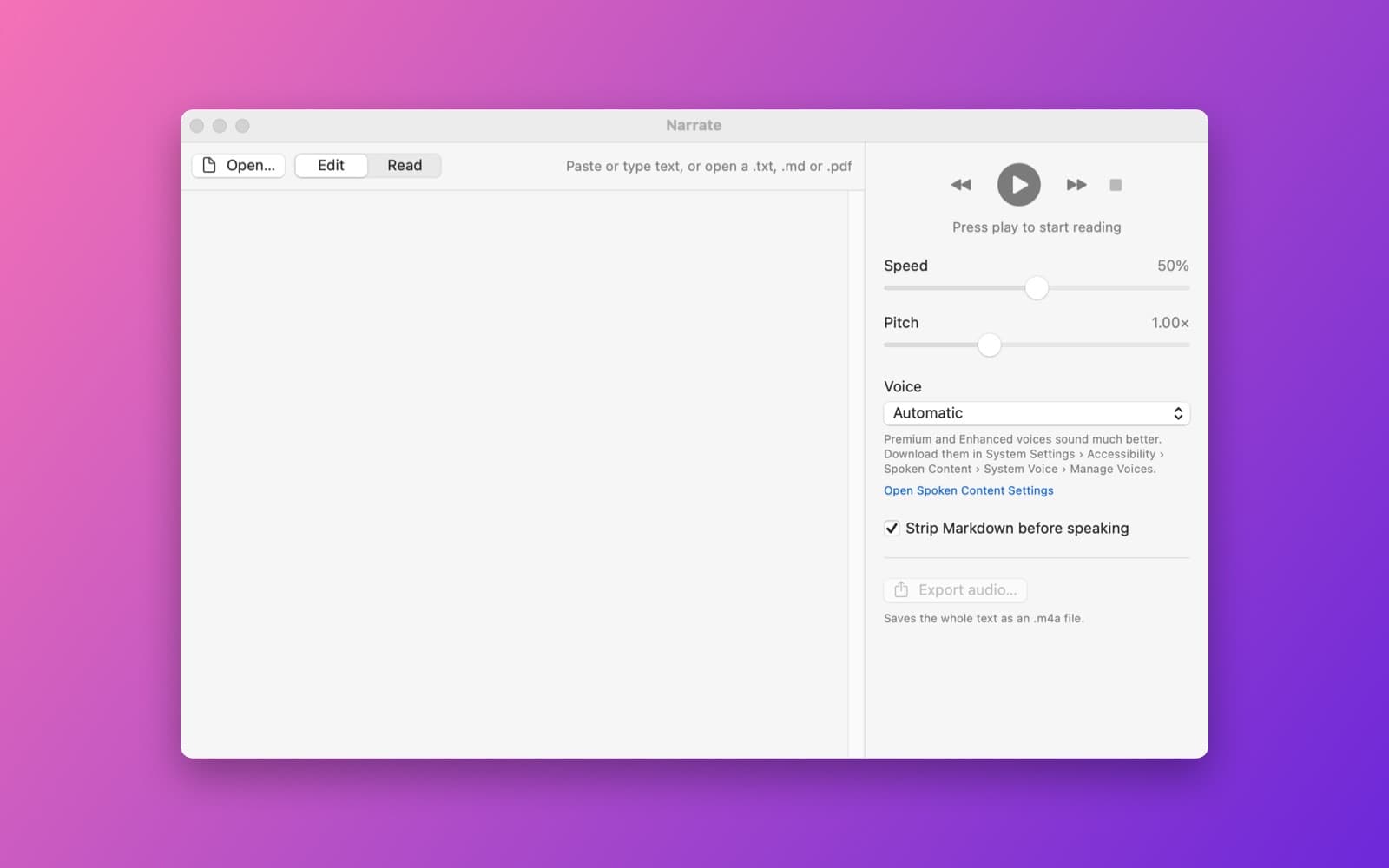
About Narrate
Narrate reads text, Markdown and PDFs aloud, or saves them as audio.
What it does
- Paste or open. Paste text or Markdown, or open a .txt, .md or .pdf file.
- Follow along. The current sentence and word are highlighted as they are spoken, and you can click any sentence to start there.
- Voices. Lists the voices installed on your Mac, with Premium and Enhanced ones first.
- Export the whole text to an .m4a file.
Notes
It uses the voices built into macOS. For the most natural ones, download a Premium voice in System Settings, Accessibility, Spoken Content.
Information
- Developer
- SiliconDevKit (generated by AI from a prompt)
- Category
- Audio
- Compatibility
- macOS 13 or later, Apple silicon. Apple silicon Macs only (M1 or later), not Intel
- Size
- 417 KB (.dmg)
- Version
- 1.0
- Price
- Free
- Signing
- Ad-hoc signed, not notarized
The prompt behind it
This app was generated from the prompt below. Paste it into SiliconDevKit to build your own version, then change it however you like.
Build a macOS app called Narrate, a local text-to-speech reader. The left side is a text area where you paste text or Markdown, or open a .txt, .md or .pdf file (use PDFKit for PDFs, and strip Markdown markup before speaking). Split the text into sentences with NLTokenizer and speak it with AVSpeechSynthesizer, highlighting the current sentence and word as it is spoken and scrolling to keep it visible. Click any sentence to start from there. Controls: play and pause, skip sentence, speed and pitch sliders, and a voice picker that lists the installed voices grouped by language and quality (put Premium and Enhanced voices first, and show a hint to download them in System Settings under Accessibility, Spoken Content). Add an Export audio button that renders the whole text to an .m4a file using AVSpeechSynthesizer.write with a progress bar. No network access is needed.
Opening it for the first time
- Open the .dmg and drag Narrate onto the Applications folder.
- Open it from Applications. macOS may say it can’t check the app for malicious software. Click Done.
- Open System Settings → Privacy & Security and click Open Anyway. This is needed once. Why this happens. To share an app without the warning, see how to notarize it.


