
Developer
Live Linux Desktop
A full Linux desktop in a window on your Mac. Open a browser, check the logs, then stop it when you are done.
- Category
- Developer
- Requires
- macOS 13+
- Size
- Not measured
- Price
- Free
Preview
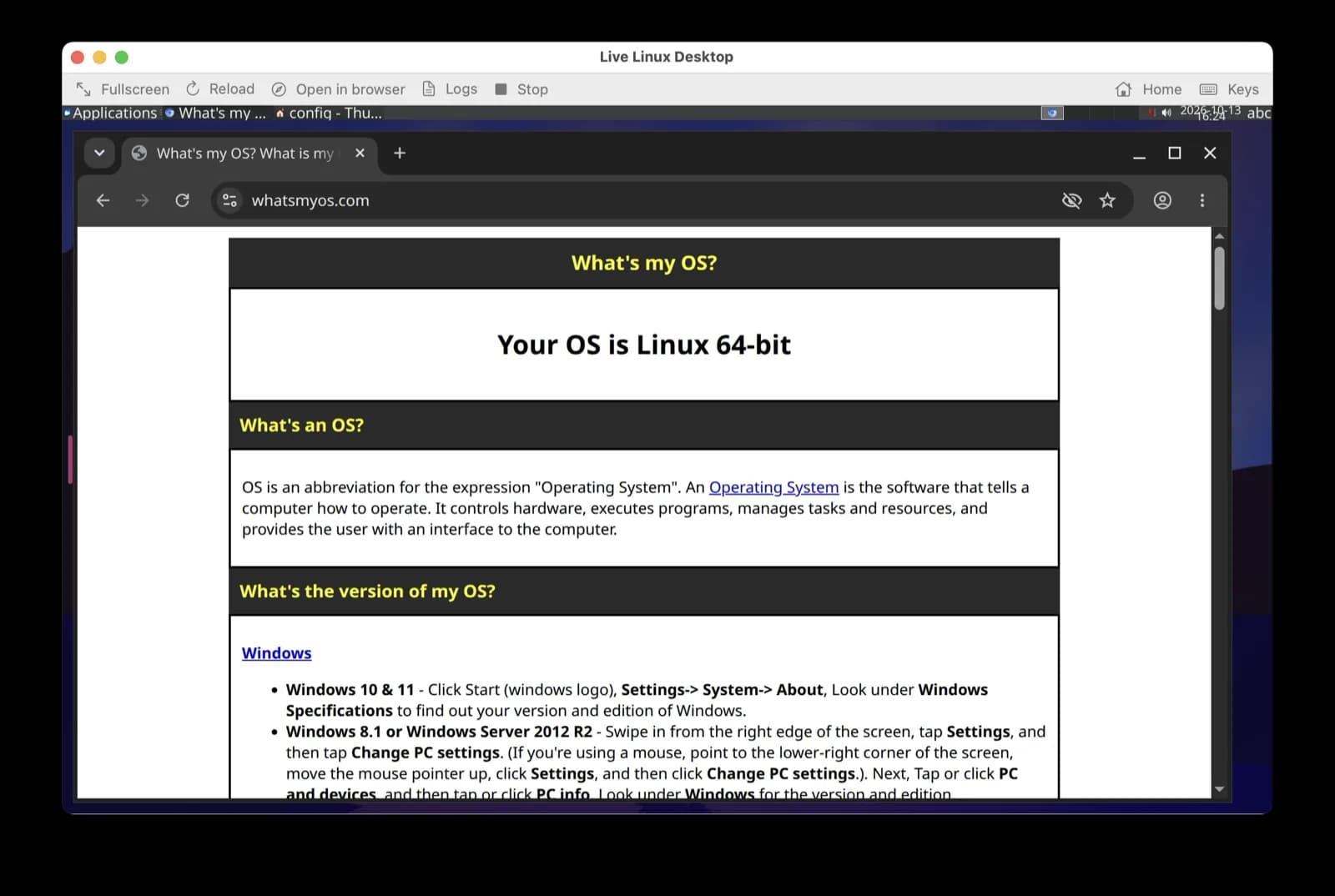
About Live Linux Desktop
Live Linux Desktop shows a working Linux desktop inside a normal Mac window. You get a panel, a menu of applications and a web browser, running in a container. It needs Colima and Docker, which the app can install for you with Homebrew.
What it does
- A Linux desktop in a window. The screenshot shows a Linux panel with an Applications menu, a window list and a clock.
- A browser inside it. The one in the screenshot reports "Your OS is Linux 64-bit".
- Toolbar buttons. Fullscreen, Reload, Open in browser, Logs, Stop, Home and Keys.
How it was made
It was made in the SiliconDevKit desktop app. The cloud wrote the code and a Mac compiled it.
Notes
The first start downloads a Linux desktop image, and Colima keeps using memory while it runs. We did not test it beyond the screenshot. We have not checked how fast it runs, what the Keys button does or how the Stop button behaves.
Information
- Developer
- SiliconDevKit (generated by AI from a prompt)
- Category
- Developer
- Compatibility
- macOS 13 or later, Apple silicon. Apple silicon Macs only (M1 or later), not Intel
- Size
- Not measured (.dmg)
- Latest version
- 1.0
- Price
- Free
- Signing
- Ad-hoc signed, not notarized
The prompt behind it
This app was generated from the prompt below. Paste it into SiliconDevKit to build your own version, then change it however you like.
Build a native Mac app called Live Linux Desktop. One big button starts a real Linux desktop (XFCE, i3, KDE and more) inside a Docker container on Colima (no Docker Desktop, no Virtualization framework, no ISO) and shows it live in the app's own window. If Colima and Docker are missing, the same button installs them. Nothing is sent to a cloud service, except the image download. RESEARCH FIRST (WebSearch and WebFetch before any code) Webtop changes often, so read, not remember: (1) docs.linuxserver.io/images/docker-webtop and fleet.linuxserver.io: the current image name, the flavor tags (alpine-i3, alpine-xfce or latest, debian-xfce, ubuntu-xfce, ubuntu-mate, ubuntu-kde, fedora-xfce and any others), which of them have arm64 (Apple silicon) builds, whether a specific dated or versioned tag can be pinned, the ports (3000 http, 3001 https), the environment variables (PUID, PGID, TZ, TITLE, CUSTOM_USER, PASSWORD and any new ones), the /config volume, and the shm_size advice; (2) how its web desktop streams (Selkies, websockets) and whether it needs HTTPS or a secure context for the keyboard, clipboard or sound; (3) Colima: `colima start --help` (cpu, memory, disk), whether the Mac home folder is mounted into the VM and writable, `brew services start colima`; (4) Apple docs for WKWebView, WKNavigationDelegate server trust challenges, WKUIDelegate (file pickers, new windows) and App Transport Security for http to an IP address; (5) `docker pull` output when it is not a terminal, so layer progress can be parsed. Where a page disagrees with this prompt, follow the page and say what changed. DOCKER AND COLIMA (honest, never a shell string) - Run tools with Process and an argument array, with a PATH that includes /opt/homebrew/bin and /usr/local/bin, a 10 second timeout for quick calls, all off the main thread. Find docker in /opt/homebrew/bin, /usr/local/bin and /Applications/Docker.app/Contents/Resources/bin. - If docker or colima is missing, the main button first asks "Install Colima and Docker?" and then runs brew install colima docker, streaming the output into a log with a progress bar and Cancel. If Homebrew is missing, the button opens https://brew.sh. Never install Homebrew. - If Colima is not running, run colima start --cpu 2 --memory 4 --disk 20 (or what the research recommends for a desktop; changeable in Settings). Check with `docker info`. - Start the desktop with a version-pinned compose file in Application Support/Live Linux Desktop/ if a tag can be pinned, otherwise the flavor tag (say so in About): container name "livelinux", restart: unless-stopped, shm_size 1gb, ports bound to 127.0.0.1 only (3000 and 3001), TZ from TimeZone.current.identifier, PUID and PGID 1000, a named volume for /config (one per flavor, so flavors do not mix). If `docker compose` is missing, fall back to `docker run` with the same settings. - Before starting, try to bind TCP 3000 and 3001 on 127.0.0.1; if taken, show what holds it (lsof -nP -iTCP:3000) and offer other ports. ONE-CLICK FLOW (one window, one big button) - Top card: a logo drawn in code (a small desktop window on a blue gradient), the title, a flavor picker, and one big button: "Launch Linux" the first time (under it: "Downloads about 1 GB once, then starts in a few seconds. Nothing to type."), "Open desktop" afterwards, "Stop" while running. - Flavor picker: Tiny (alpine-i3, about 770 MB), Standard (XFCE), and the others from the research that have an arm64 build. Show each one's approximate download size and say it is approximate. Selecting a flavor never deletes another flavor's data. - Named stages with a real check mark each: Colima ready, Image downloaded, Desktop starting, Ready. Download progress comes from the pull output (count layers: "Pulling fs layer", "Download complete", "Pull complete" and the totals shown), with an indeterminate bar if the format is not parseable. Cancel at any time. Docker errors (no network, disk full, port in use) are shown in plain words with a Show details box. - Health: poll http://127.0.0.1:3000/ every 2 seconds (an IP address, so App Transport Security does not block it); the first start can take a minute. Do not show the desktop until the page answers. - Once ready, show the desktop in a WKWebView that fills the window, with a slim bar on top: Fullscreen, Reload, Open in browser, Logs, Stop, and a "Keys" help. If the research shows the page needs https, load https://127.0.0.1:3001 and accept the self-signed certificate only for host 127.0.0.1 in the WKNavigationDelegate challenge, nowhere else. Handle target=_blank links and file pickers (WKUIDelegate) sensibly. DESKTOP DETAILS (do not promise what the research does not confirm) - Keys help: Mac shortcuts such as Command-C may not reach Linux; say what works, from the research. Say that sound, clipboard sharing and window resizing depend on the web desktop and the browser engine, and test none of them in the reply. - A shared folder: an optional "Share a Mac folder" button (open panel) that mounts it into the container, for example at /config/MacShare, but only if the research shows Colima can mount that path writable; otherwise hide it and say why. - Settings: flavor, CPU and memory for Colima, ports, "Require a password" (CUSTOM_USER and PASSWORD, stored in the Keychain, shown with Copy), "Start Colima at login" (brew services start colima; only if the research confirms it), launch at login (SMAppService.mainApp), "Stop Colima when I quit" (off by default, with a note that Colima uses memory while it runs), Update (pull the newest image for the flavor and recreate the container; the volume is kept), Reveal the app folder, and "Remove this flavor" (confirmation naming what is deleted: the container and its volume). - Menu bar icon: grey stopped, orange starting, green running; menu: status, Open desktop, Stop, Quit. Do not stop the container on quit. - Logs window: docker logs --tail 300 livelinux with Refresh, Follow, Copy, Save. QUALITY - macOS 13, Swift 5 language mode, SwiftUI with ObservableObject and @Published, one NSViewRepresentable for the WKWebView. Apple frameworks only, no packages, no Xcode project or asset catalog. Modules: DockerCLI, ColimaManager, DesktopController (compose file, start/stop, health), PullProgress, WebDesktopView, SettingsStore and the views. - The code is compiled later on the user's Mac: check every initializer, label and optional, no force-unwraps. Do not fake anything: no pretend progress, no pretend desktop. - In your reply, say what you built, what the research changed, and what you could not test.
What it cost
The credits used by this demo were not recorded in our usage log. Demos built through the live build system show every run with its tokens and credits.
Opening it for the first time
- Open the .dmg and drag Live Linux Desktop onto the Applications folder.
- Open it from Applications. macOS may say it can’t check the app for malicious software. Click Done.
- Open System Settings → Privacy & Security and click Open Anyway. This is needed once. Why this happens. To share an app without the warning, see how to notarize it.
You might also like
 Get
GetPlayTube
Paste a video link and watch it in a clean player, with no ads.
 Get
GetAdMute
Listens to your Mac's audio and mutes the ads, then brings the sound back.
 Get
GetToob-Downer
Paste a video link and save the video to your Mac, with a queue to keep track.
 Get
GetAgent Swarm
Send one task to Claude, Gemini and Hermes at once.