
Network
Line Speed
Measure your internet download, upload and latency.
Get for Mac.dmg · 482 KB · or download .zip
- Category
- Network
- Requires
- macOS 13+
- Size
- 482 KB
- Price
- Free
Preview
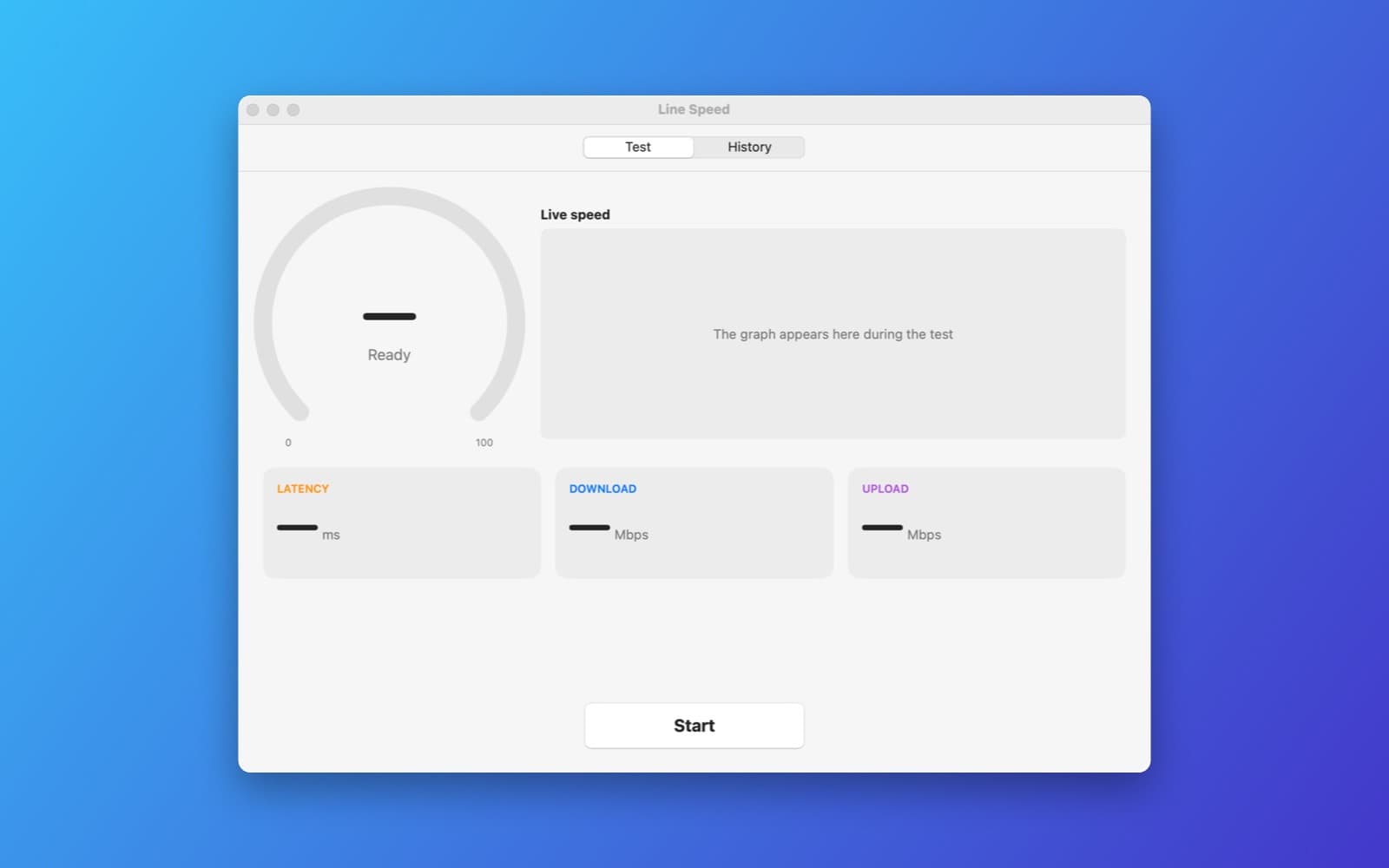
About Line Speed
Line Speed measures your internet download, upload and latency.
What it does
- Three phases. Latency and jitter, then download, then upload, with a live gauge.
- Parallel connections against Cloudflare's public speed test, with the size increasing until the speed settles.
- History. Past results are saved with a chart, and you can copy a result.
Notes
It needs an internet connection and sends test data to Cloudflare's speed test servers. Results depend on your connection and on Wi-Fi conditions.
Information
- Developer
- SiliconDevKit (generated by AI from a prompt)
- Category
- Network
- Compatibility
- macOS 13 or later, Apple silicon. Apple silicon Macs only (M1 or later), not Intel
- Size
- 482 KB (.dmg)
- Version
- 1.0
- Price
- Free
- Signing
- Ad-hoc signed, not notarized
The prompt behind it
This app was generated from the prompt below. Paste it into SiliconDevKit to build your own version, then change it however you like.
Build a macOS app called Line Speed, an internet speed test. A big Start button runs three phases with a live gauge: latency and jitter (20 small requests, showing the median and the spread), download speed and upload speed in Mbps. Measure against Cloudflare's public speed test endpoints (https://speed.cloudflare.com/__down?bytes=N for download and POST to https://speed.cloudflare.com/__up for upload) using URLSession with several parallel connections, increasing the file size until the speed stabilises, and report the stable average. Show a live line graph of the speed during each phase, the result in large type, and a History list (saved as JSON in Application Support) with a small chart of past results and a Copy result button. Handle being offline with a clear message, and add a Cancel button.
Opening it for the first time
- Open the .dmg and drag Line Speed onto the Applications folder.
- Open it from Applications. macOS may say it can’t check the app for malicious software. Click Done.
- Open System Settings → Privacy & Security and click Open Anyway. This is needed once. Why this happens. To share an app without the warning, see how to notarize it.


