
Audio
Hush
Remove hum, keyboard clatter and echo from voice recordings.
Get for Mac.dmg · 392 KB · or download .zip
- Category
- Audio
- Requires
- macOS 13+
- Size
- 392 KB
- Price
- Free
Preview
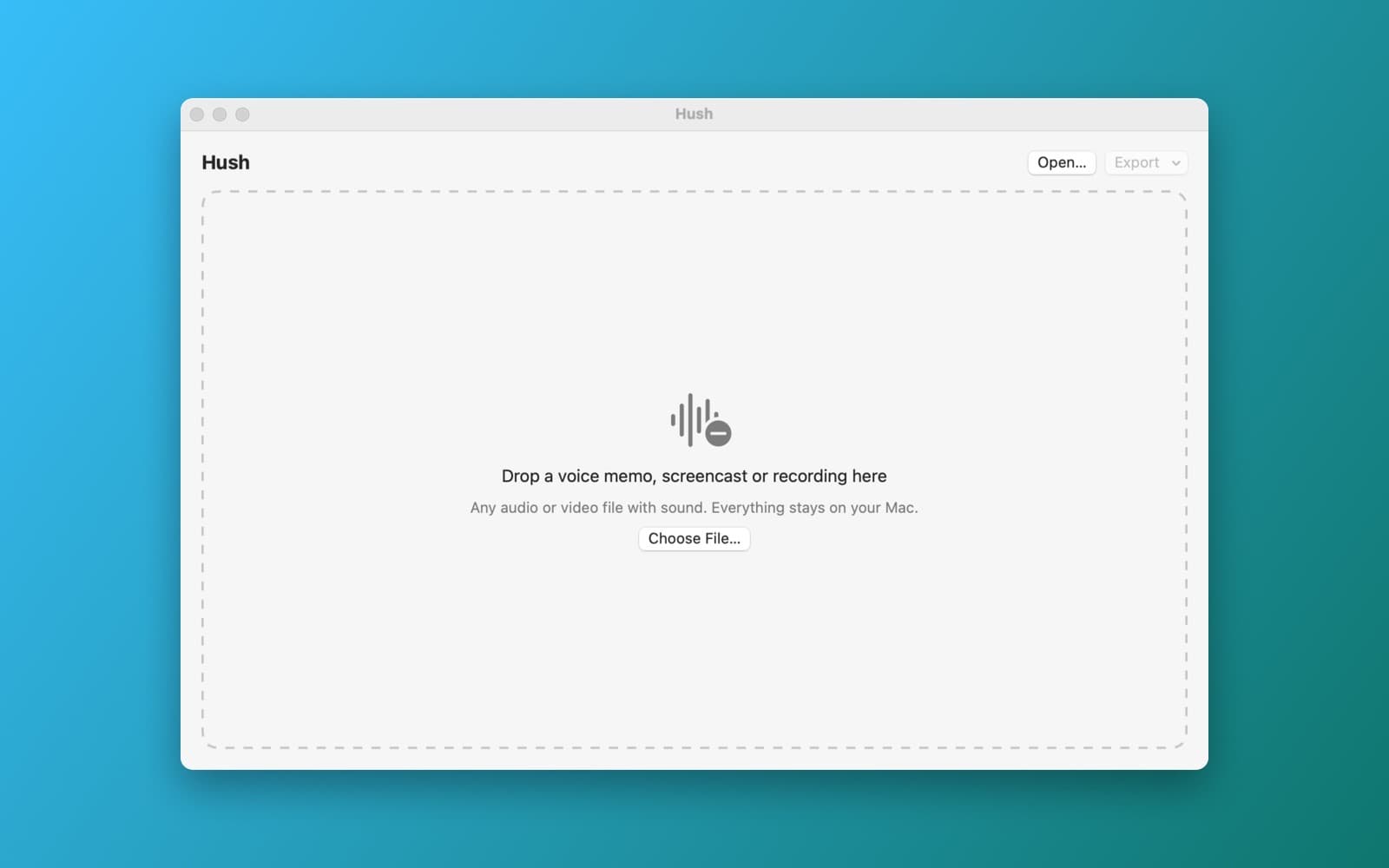
About Hush
Hush removes hum, background noise and room echo from voice recordings with one slider.
What it does
- Drop a recording. Audio or video files with sound.
- Cleaning. A noise gate that adapts per frequency band, notch filters for 50 and 60 Hz hum, and a light de-reverb.
- Compare. Switch between the original and cleaned audio while it plays, with both waveforms drawn above each other.
- Export as .m4a or .wav.
Notes
It is signal processing, not a neural network. Strong settings can make voices sound thin.
Information
- Developer
- SiliconDevKit (generated by AI from a prompt)
- Category
- Audio
- Compatibility
- macOS 13 or later, Apple silicon. Apple silicon Macs only (M1 or later), not Intel
- Size
- 392 KB (.dmg)
- Version
- 1.0
- Price
- Free
- Signing
- Ad-hoc signed, not notarized
The prompt behind it
This app was generated from the prompt below. Paste it into SiliconDevKit to build your own version, then change it however you like.
Build a macOS app called Hush, a one-slider voice cleaner. Drop in a voice memo, screencast or recording (any audio or video file with sound, read with AVAsset and AVAudioFile). Estimate the background noise from the quietest part of the recording, then clean it in Swift with Accelerate (vDSP FFT): a spectral gate that adapts per frequency band with smoothing over time (to avoid a metallic sound), a high-pass filter and notch filters for 50 and 60 Hz hum and their harmonics, and a light de-reverb that lowers the late reverberant tail. A single Strength slider (0 to 100) is the only required control, and a Compare button toggles between the original and the cleaned audio during playback with AVAudioEngine. Draw the original and cleaned waveforms in a SwiftUI Canvas, one above the other, and show a playhead. Export the cleaned audio as .m4a or .wav. Everything runs locally.
Opening it for the first time
- Open the .dmg and drag Hush onto the Applications folder.
- Open it from Applications. macOS may say it can’t check the app for malicious software. Click Done.
- Open System Settings → Privacy & Security and click Open Anyway. This is needed once. Why this happens. To share an app without the warning, see how to notarize it.


