
Productivity
File Actions
Drop in any file and see what you can do with it. For the hard things, say it in plain words and check the command before it runs.
- Category
- Productivity
- Requires
- macOS 13+
- Size
- 843 KB
- Price
- Free
Preview
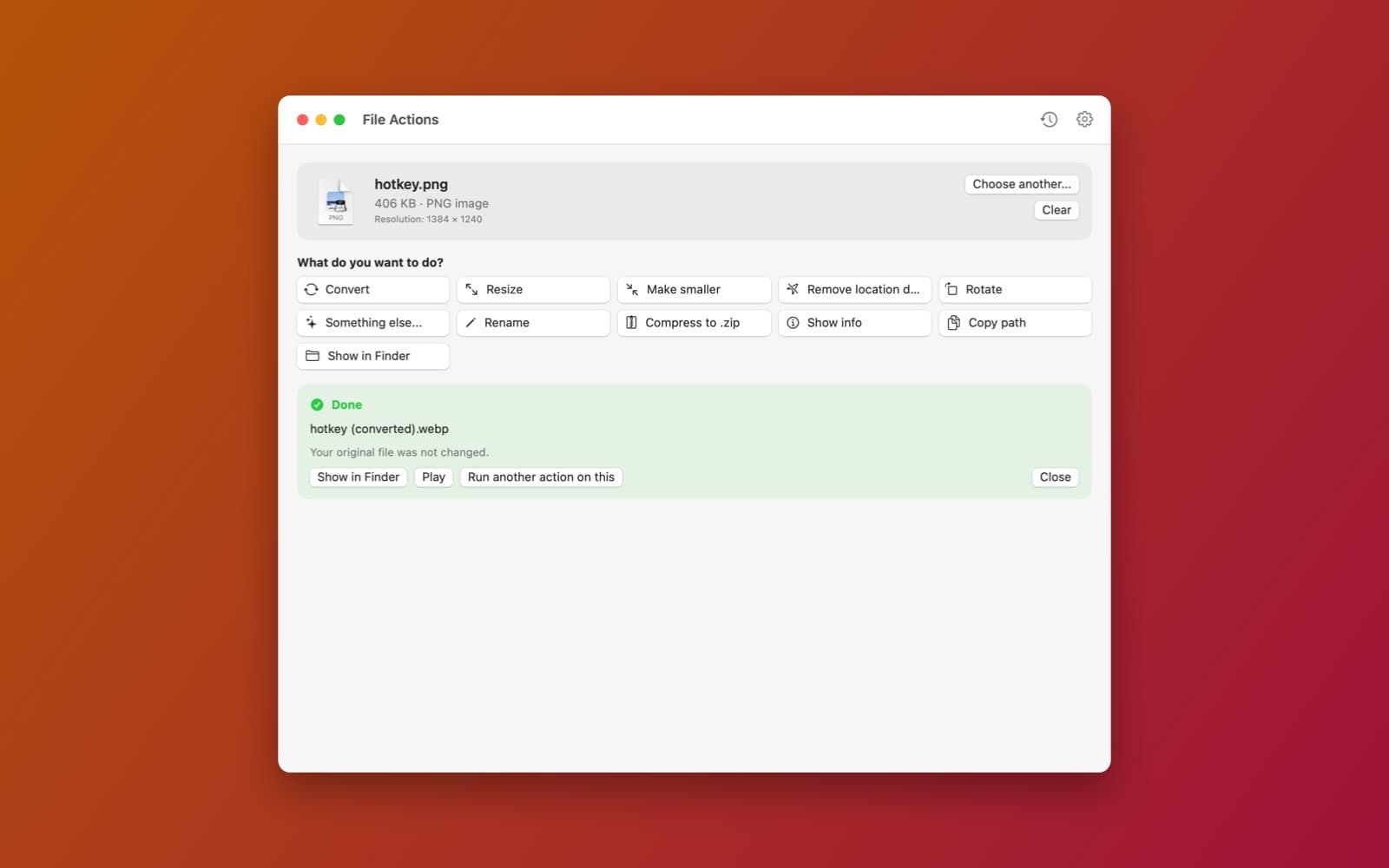
About File Actions
File Actions shows the actions that make sense for the file you drop on it. A picture offers Convert, Resize, Make smaller, Remove location data and Rotate. A video offers Trim, Convert, Extract audio, Change speed and more. Easy actions run at once. For the hard ones, such as "keep from 2:10 to 5:30 and make it 720p", you type what you want in plain words and an AI turns it into a real command.
What it does
- Actions for the kind of file. Images, video, audio, PDFs, folders and archives each get their own list, and every file gets Rename, Compress to .zip, Show info, Copy path and Show in Finder.
- Plain words, then a real command. The AI answers with a short summary ("Keeps 2:10 to 5:30 and saves it as a 720p .mp4"), the exact command, any warnings, and the name of the new file. Nothing runs until you press Run.
- Safe by design. It is built so that only a short list of tools can run (ffmpeg, ffprobe, sips, afconvert and zip), the arguments are checked in code rather than trusted, and your original file is never changed. Results get a new name such as "name (converted).webp".
- Your choice of AI. Sign in to OpenRouter, which can use free models, or use a model running on your own Mac with Ollama. It is built to send the AI only your request and the file's name, size and basic details, never the file itself.
- Tools on demand. Images, zip and simple audio use the tools built into your Mac. For video, mp3 and WebP it downloads ffmpeg once, checks it against the checksum published with it, and keeps it in the app's own folder.
- History. The last requests are kept with their commands, so you can run one again.
How it was made
One prompt in the SiliconDevKit desktop app, with no follow-up. The prompt asks the builder to read the ffmpeg documentation, find a trusted ffmpeg build for Apple silicon, and read the OpenRouter and Ollama documentation before writing code. The cloud wrote the code and a Mac compiled it, and the first build compiled with no fixes. This was the biggest build of the four apps added on this day, as the cost below shows.
Notes
The screenshot shows a PNG picture converted to WebP. We did not test video trims, the AI step with a real model, the Ollama option, PDFs or the progress bar. The ffmpeg builds it downloads come from a third-party site and include GPL-licensed codecs, so read the site's license notes if you plan to share files made with them.
Information
- Developer
- SiliconDevKit (generated by AI from a prompt)
- Category
- Productivity
- Compatibility
- macOS 13 or later, Apple silicon. Apple silicon Macs only (M1 or later), not Intel
- Size
- 843 KB (.dmg)
- Latest version
- 1.0
- Price
- Free
- Signing
- Ad-hoc signed, not notarized
The prompt behind it
This app was generated from the prompt below. Paste it into SiliconDevKit to build your own version, then change it however you like.
Build a native Mac app called File Actions. Drop in any file and it shows the actions that make sense for that kind of file. For the hard ones (trim a video, convert audio, resize pictures) you type what you want in plain words, an AI turns it into a real command, shows the command and a short plain summary, and you press "Run". Nothing runs until you press Run, and your original file is never changed. RESEARCH FIRST (use WebSearch and WebFetch before you write code) Do not rely on memory. Read: (1) FFmpeg's documentation for ffmpeg and ffprobe: trimming with -ss, -to and -t (before and after -i, and what each does to accuracy), -c copy versus re-encoding, the concat demuxer, scale, fps, atempo, loudnorm, -an, -vn, -n (never overwrite), and ffprobe -show_format -show_streams -of json; (2) where to get a trusted static ffmpeg and ffprobe build for macOS on Apple silicon (an official or well-known builds page, with a published checksum), its license, and its size; (3) the OpenRouter documentation for OAuth with PKCE (sign in, get a key), the chat completions API with response_format json, and how to find free models (the models list with pricing zero), as a way to try several free models in order; (4) Ollama's local HTTP API (/api/chat with format json, /api/tags) for people who run models on their own Mac; (5) Apple's documentation for UTType and file type conformance, AVKit AVPlayerView, AVFoundation duration and tracks, the sips and afconvert command line tools, and PDFKit; (6) whether Apple's on-device Foundation Models framework exists on this Mac's macOS version (use it only behind #available, as a third AI choice). Also find out whether a Swift-Package-built app can add Finder integration (Open With, Services menu, a Finder extension) and say what you found: if not possible, say so on the first screen and use the drop zone instead. Where a page disagrees with this prompt, follow the page and say what changed. THE WINDOW - A big drop zone ("Drop a file here, or choose one"), plus Open... (NSOpenPanel) and, if the research shows it can work, a "Use the file selected in Finder" button (AppleScript or the Scripting Bridge; say plainly if macOS blocks it and how to allow it). Several files at once are allowed for actions that make sense for many (Rename, Convert, Compress). - After a drop: a card with the file's icon, name, size, kind and, from ffprobe or AVFoundation, the duration, resolution, codecs and bit rate. Video and audio get a small player (AVPlayerView) so the user can find the times they want, with "Use this time" buttons that put the current time into the text box. - Below it, the actions for that kind of file, as buttons: ALL files: Rename (with AI help), Compress to .zip, Show info, Copy path, Show in Finder. VIDEO: Trim or cut parts, Convert (mp4, mov, webm, gif), Extract audio, Make smaller, Change speed, Remove sound, Resize, Make a GIF. AUDIO: Trim or cut parts, Convert (mp3, m4a, wav, flac), Make quieter or louder or even out the volume, Change speed. IMAGES: Convert (jpg, png, heic, webp), Resize, Make smaller, Remove location data, Rotate. PDF: Extract pages, Merge, Make smaller, Pages to images. FOLDERS: Compress to .zip. ARCHIVES: Extract. Show only what fits the file. A "Something else..." button takes any request in plain words for that file type. - Easy actions (Rename, Zip, Show info, Copy path, Convert an image with sips, Convert audio with afconvert) run with no AI and show the exact command too. THE AI STEP (the important part) - When the user types a request ("keep from 2:10 to 5:30, then make it 720p mp4", "cut out the first minute", "make the file name lower case and add today's date"), build a prompt that contains ONLY: the request, the file's name, extension, size and the ffprobe or AVFoundation facts. Never send the file's contents. Show a "What will be sent" box before the first request and keep it one click away after. - The AI must answer in JSON only: a list of steps, each with the program name (only ffmpeg, ffprobe, sips, afconvert or zip names from an allow list), an arguments array, the output file name, and a summary in plain words, plus a warnings list (for example "this re-encodes, so it takes longer" or "cutting without re-encoding can be a second off"). Where it fits, offer two versions: Fast (no re-encode, may be slightly off) and Exact (re-encode). - Show the result as: a short summary in everyday words ("Keeps 2:10 to 5:30 and saves it as a 720p .mp4"), the full command in a monospaced box with a Copy button, the warnings, the output name, and the buttons "Run", "Change my request" and "Cancel". Several steps (convert, then cut) show as a numbered list that runs one after the other with temporary files in between. - Check the answer before showing it, in code, not by trusting the AI: the program must be in the allow list and resolve to the downloaded or system tool; the arguments are passed as an array to Process (never a shell string); all paths must be the chosen file or the output folder; never allow overwriting (use ffmpeg -n and a new name like "name (cut).mp4"); reject anything else and say why in plain words, then ask the AI once to try again. - Run with Process, stream progress into a progress bar (parse ffmpeg's time against the duration) with Cancel, then show the result with "Show in Finder", "Play" and "Run another action on this". Show friendly errors with a Show Details box that has the tool's real error text. SET-UP - Tools: on first need, download ffmpeg and ffprobe into Application Support/File Actions/bin with progress, a checksum and Cancel (the source you found). Images, zip and simple audio use the Mac's own tools, so those work with no download. - AI choices in Settings: "OpenRouter" (a Sign in button with OAuth PKCE, the key kept in the Keychain, tries free models in order and shows which one answered), "Ollama" (finds it on this Mac and lists the models), and "Apple on-device" (only if available). If none is set up, the first screen offers the easy no-AI actions and a clear "Set up AI" button. - A history of the last 20 requests with their commands (name, request, command, result) in Application Support, with Re-run and Delete. Nothing leaves the Mac except the AI request text described above. QUALITY - macOS 13 or later, Apple silicon, Swift 5 language mode, SwiftUI with ObservableObject and @Published. Only Apple frameworks, no packages, no Xcode project or asset catalog. Modular: FileKinds (types and which actions fit), ProbeService, AIClient (OpenRouter, Ollama, Apple), CommandPlanner (parse and validate the JSON), ToolRunner, ToolInstaller, ActionsView and the views. Network, file and process work off the main thread. - The code is compiled later on the user's Mac, not here: check every initializer, argument label and optional, with no force-unwraps. Do not fake anything: no sample files, no pretend AI answers; if the AI is not set up, say so. - In your reply, say in a few sentences what you built, what the lookups changed (the ffmpeg source, the OAuth steps, the Finder integration), and what you could not test: the tool download, the AI answers, the Finder selection button, real trims and conversions and the progress bar were not run.
What it cost
Every AI run that made this demo, one per line. Model: Claude Sonnet 5.5. Tokens are shown as (in / out). “In” counts everything the model read, including text it had already seen in the session at a reduced price.
| Initial prompt(4.15M in / 145k out) | 303 credits | |
| = | Total(4.15M in / 145k out) | 303 credits |
Credits are what a build uses on your plan. This counts AI usage only: hosting and the Mac that compiled it are not included.
Version tree
Every change to this app is a new version. Use any build as a template to start your own copy from it; forks that their makers shared appear as branches.
Version 1.0Oct 11, 2026
Build a native Mac app called File Actions. Drop in any file and it shows the actions that make sense for that kind of file. For the hard ones (trim a video, convert audio, resize pictures) you type what you want in plain words, an AI turns it into a real command, shows the command and a short plain summary, and you press "Run". Nothing runs until you press Run, and your original file is never changed. RESEARCH FIRST (use WebSearch and WebFetch before you write code) Do not rely on memory. Read: (1) FFmpeg's documentation for ffmpeg and ffprobe: trimming with -ss, -to and -t (before and after -i, and what each does to accuracy), -c copy versus re-encoding, the concat demuxer, scale, fps, atempo, loudnorm, -an, -vn, -n (never overwrite), and ffprobe -show_format -show_streams -of json; (2) where to get a trusted static ffmpeg and ffprobe build for macOS on Apple silicon (an official or well-known builds page, with a published checksum), its license, and its size; (3) the OpenRouter documentation for OAuth with PKCE (sign in, get a key), the chat completions API with response_format json, and how to find free models (the models list with pricing zero), as a way to try several free models in order; (4) Ollama's local HTTP API (/api/chat with format json, /api/tags) for people who run models on their own Mac; (5) Apple's documentation for UTType and file type conformance, AVKit AVPlayerView, AVFoundation duration and tracks, the sips and afconvert command line tools, and PDFKit; (6) whether Apple's on-device Foundation Models framework exists on this Mac's macOS version (use it only behind #available, as a third AI choice). Also find out whether a Swift-Package-built app can add Finder integration (Open With, Services menu, a Finder extension) and say what you found: if not possible, say so on the first screen and use the drop zone instead. Where a page disagrees with this prompt, follow the page and say what changed. THE WINDOW - A big drop zone ("Drop a file here, or choose one"), plus Open... (NSOpenPanel) and, if the research shows it can work, a "Use the file selected in Finder" button (AppleScript or the Scripting Bridge; say plainly if macOS blocks it and how to allow it). Several files at once are allowed for actions that make sense for many (Rename, Convert, Compress). - After a drop: a card with the file's icon, name, size, kind and, from ffprobe or AVFoundation, the duration, resolution, codecs and bit rate. Video and audio get a small player (AVPlayerView) so the user can find the times they want, with "Use this time" buttons that put the current time into the text box. - Below it, the actions for that kind of file, as buttons: ALL files: Rename (with AI help), Compress to .zip, Show info, Copy path, Show in Finder. VIDEO: Trim or cut parts, Convert (mp4, mov, webm, gif), Extract audio, Make smaller, Change speed, Remove sound, Resize, Make a GIF. AUDIO: Trim or cut parts, Convert (mp3, m4a, wav, flac), Make quieter or louder or even out the volume, Change speed. IMAGES: Convert (jpg, png, heic, webp), Resize, Make smaller, Remove location data, Rotate. PDF: Extract pages, Merge, Make smaller, Pages to images. FOLDERS: Compress to .zip. ARCHIVES: Extract. Show only what fits the file. A "Something else..." button takes any request in plain words for that file type. - Easy actions (Rename, Zip, Show info, Copy path, Convert an image with sips, Convert audio with afconvert) run with no AI and show the exact command too. THE AI STEP (the important part) - When the user types a request ("keep from 2:10 to 5:30, then make it 720p mp4", "cut out the first minute", "make the file name lower case and add today's date"), build a prompt that contains ONLY: the request, the file's name, extension, size and the ffprobe or AVFoundation facts. Never send the file's contents. Show a "What will be sent" box before the first request and keep it one click away after. - The AI must answer in JSON only: a list of steps, each with the program name (only ffmpeg, ffprobe, sips, afconvert or zip names from an allow list), an arguments array, the output file name, and a summary in plain words, plus a warnings list (for example "this re-encodes, so it takes longer" or "cutting without re-encoding can be a second off"). Where it fits, offer two versions: Fast (no re-encode, may be slightly off) and Exact (re-encode). - Show the result as: a short summary in everyday words ("Keeps 2:10 to 5:30 and saves it as a 720p .mp4"), the full command in a monospaced box with a Copy button, the warnings, the output name, and the buttons "Run", "Change my request" and "Cancel". Several steps (convert, then cut) show as a numbered list that runs one after the other with temporary files in between. - Check the answer before showing it, in code, not by trusting the AI: the program must be in the allow list and resolve to the downloaded or system tool; the arguments are passed as an array to Process (never a shell string); all paths must be the chosen file or the output folder; never allow overwriting (use ffmpeg -n and a new name like "name (cut).mp4"); reject anything else and say why in plain words, then ask the AI once to try again. - Run with Process, stream progress into a progress bar (parse ffmpeg's time against the duration) with Cancel, then show the result with "Show in Finder", "Play" and "Run another action on this". Show friendly errors with a Show Details box that has the tool's real error text. SET-UP - Tools: on first need, download ffmpeg and ffprobe into Application Support/File Actions/bin with progress, a checksum and Cancel (the source you found). Images, zip and simple audio use the Mac's own tools, so those work with no download. - AI choices in Settings: "OpenRouter" (a Sign in button with OAuth PKCE, the key kept in the Keychain, tries free models in order and shows which one answered), "Ollama" (finds it on this Mac and lists the models), and "Apple on-device" (only if available). If none is set up, the first screen offers the easy no-AI actions and a clear "Set up AI" button. - A history of the last 20 requests with their commands (name, request, command, result) in Application Support, with Re-run and Delete. Nothing leaves the Mac except the AI request text described above. QUALITY - macOS 13 or later, Apple silicon, Swift 5 language mode, SwiftUI with ObservableObject and @Published. Only Apple frameworks, no packages, no Xcode project or asset catalog. Modular: FileKinds (types and which actions fit), ProbeService, AIClient (OpenRouter, Ollama, Apple), CommandPlanner (parse and validate the JSON), ToolRunner, ToolInstaller, ActionsView and the views. Network, file and process work off the main thread. - The code is compiled later on the user's Mac, not here: check every initializer, argument label and optional, with no force-unwraps. Do not fake anything: no sample files, no pretend AI answers; if the AI is not set up, say so. - In your reply, say in a few sentences what you built, what the lookups changed (the ffmpeg source, the OAuth steps, the Finder integration), and what you could not test: the tool download, the AI answers, the Finder selection button, real trims and conversions and the progress bar were not run.
Drop in any file, see the actions that fit it, and describe harder jobs in plain words to get a checked command you run yourself.
Opening it for the first time
- Open the .dmg and drag File Actions onto the Applications folder.
- Open it from Applications. macOS may say it can’t check the app for malicious software. Click Done.
- Open System Settings → Privacy & Security and click Open Anyway. This is needed once. Why this happens. To share an app without the warning, see how to notarize it.
You might also like
 Get
GetPlayTube
Paste a video link and watch it in a clean player, with no ads.
 Get
GetAdMute
Listens to your Mac's audio and mutes the ads, then brings the sound back.
 Get
GetToob-Downer
Paste a video link and save the video to your Mac, with a queue to keep track.
 Get
GetAgent Swarm
Send one task to Claude, Gemini and Hermes at once.