
Media
Demo Video Maker
Record your screen once, cut the idle gaps, and add a narration made on your Mac.
- Category
- Media
- Requires
- macOS 14+
- Size
- 10 MB
- Price
- Free
Preview
About Demo Video Maker
Demo Video Maker turns "I recorded how to use an app" into a finished demo video with less work. You record the screen, the app finds the quiet parts and cuts them, you write or draft a script, and a voice made on your Mac reads it over the video.
What it does
- Record. Pick a screen or a window, press Record, and stop from the menu bar or with Command-Shift-2. It can also note where you click and type, but never which keys you press.
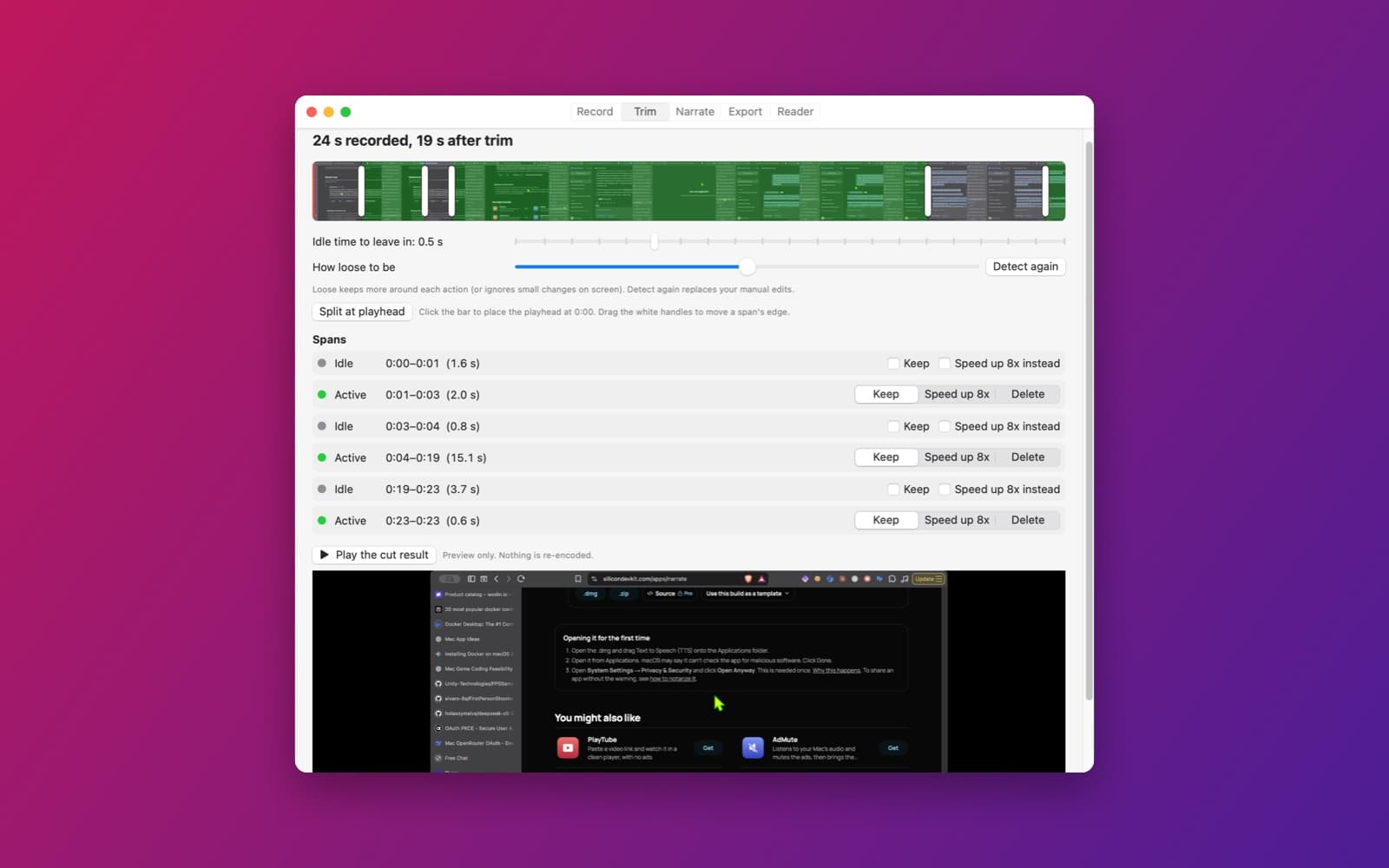
- Trim. A timeline marks the parts where something happens (green) and the quiet parts (grey). Quiet parts are cut, or sped up 8x if you prefer. You can drag the edges, split a span and play the result before anything is saved.
- Narrate. One row per scene. "Draft the script" writes a first sentence for each one, and you edit it or paste your own. The voice is Kokoro, running on your Mac, and each line is placed where its scene starts.
- Export. 1080p, 4K or a small file, with a subtitle file (.srt) and an option to burn the subtitles into the video.
- Reader. The text reader from the Text to Speech app is still there as a fifth tab.
How it was made
One prompt in the SiliconDevKit desktop app. The prompt asks the builder to read Apple's documentation for ScreenCaptureKit, AVFoundation and the global event monitors, and the FluidAudio documentation for Kokoro, before writing code. It starts with "Extend this app" because we meant it as a follow-up to our Text to Speech app. It ran in a new project with only a stub, so the builder wrote the Kokoro voice code too. The cloud wrote the code and a Mac compiled it.
Notes
On first use it downloads the Kokoro voice model (about 100 MB). The first time you record, macOS asks for Screen Recording permission. The screenshot shows the Trim tab after a 24 second recording was cut down to 19 seconds. We tested recording and trimming. We did not test the voice download, narration, export, the subtitles, 4K, or the microphone.
Information
- Developer
- SiliconDevKit (generated by AI from a prompt)
- Category
- Media
- Compatibility
- macOS 14 or later, Apple silicon. Apple silicon Macs only (M1 or later), not Intel
- Size
- 10 MB (.dmg)
- Latest version
- 1.0
- Price
- Free
- Signing
- Ad-hoc signed, not notarized
The prompt behind it
This app was generated from the prompt below. Paste it into SiliconDevKit to build your own version, then change it however you like.
Extend this app (Text to Speech with Kokoro) and name the new app Screen Demo Maker. Keep everything that works today: the Kokoro model download with progress, Cancel and Delete model, the voice list, the speed slider, sentence by sentence synthesis, and the .m4a export. Do not rewrite or replace that code; reuse it as the app's voice engine. Rename the app to Demo Video Maker (window title, menu, About). The old reader stays as a fourth tab called "Reader". The new app turns "I record how to use an app" into a finished narrated demo video with as little work as possible. Tabs: Record, Trim, Narrate, Export, Reader. You record the screen once, the app cuts the dead time by itself, writes a first script from what you did, reads it aloud with Kokoro, lines the voice up with the video, and saves an MP4. Everything runs on this Mac. No account, no cloud. RESEARCH FIRST (use WebSearch and WebFetch before you write new code) Do not rely on memory. Read Apple's documentation for: (1) ScreenCaptureKit (SCStream, SCContentFilter, SCStreamConfiguration, SCShareableContent, capturing a display or one window, frame rate, cursor, and the Screen Recording permission with CGPreflightScreenCaptureAccess and CGRequestScreenCaptureAccess); (2) AVAssetWriter with H.264 at 30 or 60 fps; (3) NSEvent.addGlobalMonitorForEvents for mouse down, key down and scroll, and which permission it needs (Accessibility or Input Monitoring) and how to check it; (4) AVFoundation editing: AVMutableComposition, insertTimeRange, scaleTimeRange, AVMutableAudioMix, and export with AVAssetExportSession or AVAssetReader plus AVAssetWriter. Also re-read how this app already calls Kokoro, so new code uses the same calls. Where a page disagrees with this prompt, follow the page and say what changed. RECORD - A big Record button, a display or window picker, a switch for the microphone (off by default), and a 3 second countdown. Record with ScreenCaptureKit to a movie file in Application Support/Demo Video Maker/Projects/<date>/. A menu bar item with a red dot shows Stop, and Command-Shift-2 stops the recording from anywhere. - While recording, ALSO write an activity log next to the video (JSON lines): each mouse click, scroll burst and typing burst, with the time on the recording clock and the screen position. Never record which keys were pressed, only that typing happened and where (the text caret or focused element through the Accessibility API, else the mouse position). Say this in plain words on the permission screen. If the log permission is missing, the video is still fine and Trim compares frames instead. TRIM (the main saver of time) - Build a timeline of active and idle spans from the log: a span is active from half a second before an event to 1.5 seconds after it; the rest is idle. With no log, find idle spans by comparing downscaled frames (almost no change for more than 1 second) on a background queue. - Show a bar with a thumbnail strip: active spans green, idle spans grey. Idle spans are cut by default, and each has a switch to keep it and a choice "speed up 8x instead". Sliders: how much idle time to allow (0 to 2 seconds) and how loose to be. A Play button previews the cut result with AVMutableComposition (no re-encode). The user can drag span edges, split and delete spans. - Show the numbers: "12 min 40 s recorded, 3 min 05 s after trim". NARRATE - One row per scene (an active span, or a group of close spans): thumbnail, time, an editable sentence, and the length of its voice clip. "Draft the script" writes a first plain sentence per scene from the log only (such as "Click the top right of the screen", "Type in the search box"). Tell the user on screen: "Edit these, they are only a first draft." The user can also paste a whole script. - Optional "Improve the wording" button, shown only if the user has set an OpenRouter key or a local Ollama model in Settings; it sends ONLY the script text, never the video, the screen or the log. - Voices: the existing Kokoro voice list and speed slider, plus "Hear this line" per row and "Make all voice clips", which renders one audio file per row on a background queue with a progress bar and caches them so unchanged rows are not made again. - Sync: place each clip at the start of its scene. If a clip is longer than its scene, extend the scene by freezing its last frame (or slow the video down to at most 0.7x with scaleTimeRange, a user choice); if shorter, leave the scene. Never let clips overlap. Show a two-lane timeline (video, voice) with the clips as blocks that can be dragged a little earlier or later. The original sound is lowered to 20 percent or off. EXPORT - Presets: 1080p MP4 (H.264, AAC), 4K, and Small file. The frame rate stays as recorded. Pick where to save, show progress and the final size, then "Show in Finder". Also write the script as an .srt subtitle file, and a switch to burn subtitles into the video. - "Save project" and reopening: change a sentence, make only the changed clips again, export again. TRUST AND SETTINGS - A first-run screen that says what is recorded, what is never recorded, and what leaves the Mac (nothing, unless the user presses Improve the wording, and then only the script text). Buttons open the right System Settings panes for Screen Recording and the log permission, with green checks. A missing permission shows a clear message, never a blank timeline. - Settings: default folder, default voice, idle allowance, countdown, OpenRouter key (kept in the Keychain) or Ollama address, and "Delete all projects" with a confirmation. QUALITY - Keep this app's current minimum macOS and its FluidAudio package; add no other packages, no Xcode project and no asset catalog. SwiftUI with ObservableObject and @Published, plus an AppKit delegate for the menu bar item and global monitors. New modules: ScreenRecorder, ActivityLogger, TimelineBuilder, ScriptDrafter, Composer (composition and export) and the views; the existing Kokoro code becomes VoiceEngine. File, network and encoding work off the main thread. Friendly errors with a Show Details box; handle no permission, a full disk, a failed render, and an app quit during recording (keep the file that exists). - The code is compiled later on the user's Mac, not here: check every initializer, argument label and optional, with no force-unwraps. Do not fake anything: no sample data, an empty project says it is empty. - In your reply, say in a few sentences what you added, what the lookups changed, and what you could not test: recording on a real Mac, the global monitors, sync of long clips, 4K export and subtitles were not run.
What it cost
Every AI run that made this demo, one per line. Model: Claude Sonnet 5.5. Tokens are shown as (in / out). “In” counts everything the model read, including text it had already seen in the session at a reduced price.
| Initial prompt(3.30M in / 137k out) | 274 credits | |
| = | Total(3.30M in / 137k out) | 274 credits |
Credits are what a build uses on your plan. This counts AI usage only: hosting and the Mac that compiled it are not included.
Version tree
Every change to this app is a new version. Use any build as a template to start your own copy from it; forks that their makers shared appear as branches.
Version 1.0Oct 11, 2026
Extend this app (Text to Speech with Kokoro) and name the new app Screen Demo Maker. Keep everything that works today: the Kokoro model download with progress, Cancel and Delete model, the voice list, the speed slider, sentence by sentence synthesis, and the .m4a export. Do not rewrite or replace that code; reuse it as the app's voice engine. Rename the app to Demo Video Maker (window title, menu, About). The old reader stays as a fourth tab called "Reader". The new app turns "I record how to use an app" into a finished narrated demo video with as little work as possible. Tabs: Record, Trim, Narrate, Export, Reader. You record the screen once, the app cuts the dead time by itself, writes a first script from what you did, reads it aloud with Kokoro, lines the voice up with the video, and saves an MP4. Everything runs on this Mac. No account, no cloud. RESEARCH FIRST (use WebSearch and WebFetch before you write new code) Do not rely on memory. Read Apple's documentation for: (1) ScreenCaptureKit (SCStream, SCContentFilter, SCStreamConfiguration, SCShareableContent, capturing a display or one window, frame rate, cursor, and the Screen Recording permission with CGPreflightScreenCaptureAccess and CGRequestScreenCaptureAccess); (2) AVAssetWriter with H.264 at 30 or 60 fps; (3) NSEvent.addGlobalMonitorForEvents for mouse down, key down and scroll, and which permission it needs (Accessibility or Input Monitoring) and how to check it; (4) AVFoundation editing: AVMutableComposition, insertTimeRange, scaleTimeRange, AVMutableAudioMix, and export with AVAssetExportSession or AVAssetReader plus AVAssetWriter. Also re-read how this app already calls Kokoro, so new code uses the same calls. Where a page disagrees with this prompt, follow the page and say what changed. RECORD - A big Record button, a display or window picker, a switch for the microphone (off by default), and a 3 second countdown. Record with ScreenCaptureKit to a movie file in Application Support/Demo Video Maker/Projects/<date>/. A menu bar item with a red dot shows Stop, and Command-Shift-2 stops the recording from anywhere. - While recording, ALSO write an activity log next to the video (JSON lines): each mouse click, scroll burst and typing burst, with the time on the recording clock and the screen position. Never record which keys were pressed, only that typing happened and where (the text caret or focused element through the Accessibility API, else the mouse position). Say this in plain words on the permission screen. If the log permission is missing, the video is still fine and Trim compares frames instead. TRIM (the main saver of time) - Build a timeline of active and idle spans from the log: a span is active from half a second before an event to 1.5 seconds after it; the rest is idle. With no log, find idle spans by comparing downscaled frames (almost no change for more than 1 second) on a background queue. - Show a bar with a thumbnail strip: active spans green, idle spans grey. Idle spans are cut by default, and each has a switch to keep it and a choice "speed up 8x instead". Sliders: how much idle time to allow (0 to 2 seconds) and how loose to be. A Play button previews the cut result with AVMutableComposition (no re-encode). The user can drag span edges, split and delete spans. - Show the numbers: "12 min 40 s recorded, 3 min 05 s after trim". NARRATE - One row per scene (an active span, or a group of close spans): thumbnail, time, an editable sentence, and the length of its voice clip. "Draft the script" writes a first plain sentence per scene from the log only (such as "Click the top right of the screen", "Type in the search box"). Tell the user on screen: "Edit these, they are only a first draft." The user can also paste a whole script. - Optional "Improve the wording" button, shown only if the user has set an OpenRouter key or a local Ollama model in Settings; it sends ONLY the script text, never the video, the screen or the log. - Voices: the existing Kokoro voice list and speed slider, plus "Hear this line" per row and "Make all voice clips", which renders one audio file per row on a background queue with a progress bar and caches them so unchanged rows are not made again. - Sync: place each clip at the start of its scene. If a clip is longer than its scene, extend the scene by freezing its last frame (or slow the video down to at most 0.7x with scaleTimeRange, a user choice); if shorter, leave the scene. Never let clips overlap. Show a two-lane timeline (video, voice) with the clips as blocks that can be dragged a little earlier or later. The original sound is lowered to 20 percent or off. EXPORT - Presets: 1080p MP4 (H.264, AAC), 4K, and Small file. The frame rate stays as recorded. Pick where to save, show progress and the final size, then "Show in Finder". Also write the script as an .srt subtitle file, and a switch to burn subtitles into the video. - "Save project" and reopening: change a sentence, make only the changed clips again, export again. TRUST AND SETTINGS - A first-run screen that says what is recorded, what is never recorded, and what leaves the Mac (nothing, unless the user presses Improve the wording, and then only the script text). Buttons open the right System Settings panes for Screen Recording and the log permission, with green checks. A missing permission shows a clear message, never a blank timeline. - Settings: default folder, default voice, idle allowance, countdown, OpenRouter key (kept in the Keychain) or Ollama address, and "Delete all projects" with a confirmation. QUALITY - Keep this app's current minimum macOS and its FluidAudio package; add no other packages, no Xcode project and no asset catalog. SwiftUI with ObservableObject and @Published, plus an AppKit delegate for the menu bar item and global monitors. New modules: ScreenRecorder, ActivityLogger, TimelineBuilder, ScriptDrafter, Composer (composition and export) and the views; the existing Kokoro code becomes VoiceEngine. File, network and encoding work off the main thread. Friendly errors with a Show Details box; handle no permission, a full disk, a failed render, and an app quit during recording (keep the file that exists). - The code is compiled later on the user's Mac, not here: check every initializer, argument label and optional, with no force-unwraps. Do not fake anything: no sample data, an empty project says it is empty. - In your reply, say in a few sentences what you added, what the lookups changed, and what you could not test: recording on a real Mac, the global monitors, sync of long clips, 4K export and subtitles were not run.
Record your screen once and get a trimmed, narrated demo video, with the voice made on this Mac by Kokoro.
Opening it for the first time
- Open the .dmg and drag Demo Video Maker onto the Applications folder.
- Open it from Applications. macOS may say it can’t check the app for malicious software. Click Done.
- Open System Settings → Privacy & Security and click Open Anyway. This is needed once. Why this happens. To share an app without the warning, see how to notarize it.
You might also like
 Get
GetPlayTube
Paste a video link and watch it in a clean player, with no ads.
 Get
GetAdMute
Listens to your Mac's audio and mutes the ads, then brings the sound back.
 Get
GetToob-Downer
Paste a video link and save the video to your Mac, with a queue to keep track.
 Get
GetAgent Swarm
Send one task to Claude, Gemini and Hermes at once.