
Video
Cutout Cam
Remove or replace the background of your webcam, live while you record, or in any video you already have.
- Category
- Video
- Requires
- macOS 13+
- Size
- 545 KB
- Price
- Free
Preview
About Cutout Cam
Cutout Cam removes the background from a video. Record with your webcam and see the new background live, or open a video file and process it afterwards. Everything is done on your Mac with Apple's own Vision framework, with no network and no cloud.
What it does
- Record. A live preview with the effect applied. Choose no change, a blur, a plain colour, a picture, or a transparent background, and press Record. It can also keep the original take as a second file, to process again later with better settings.
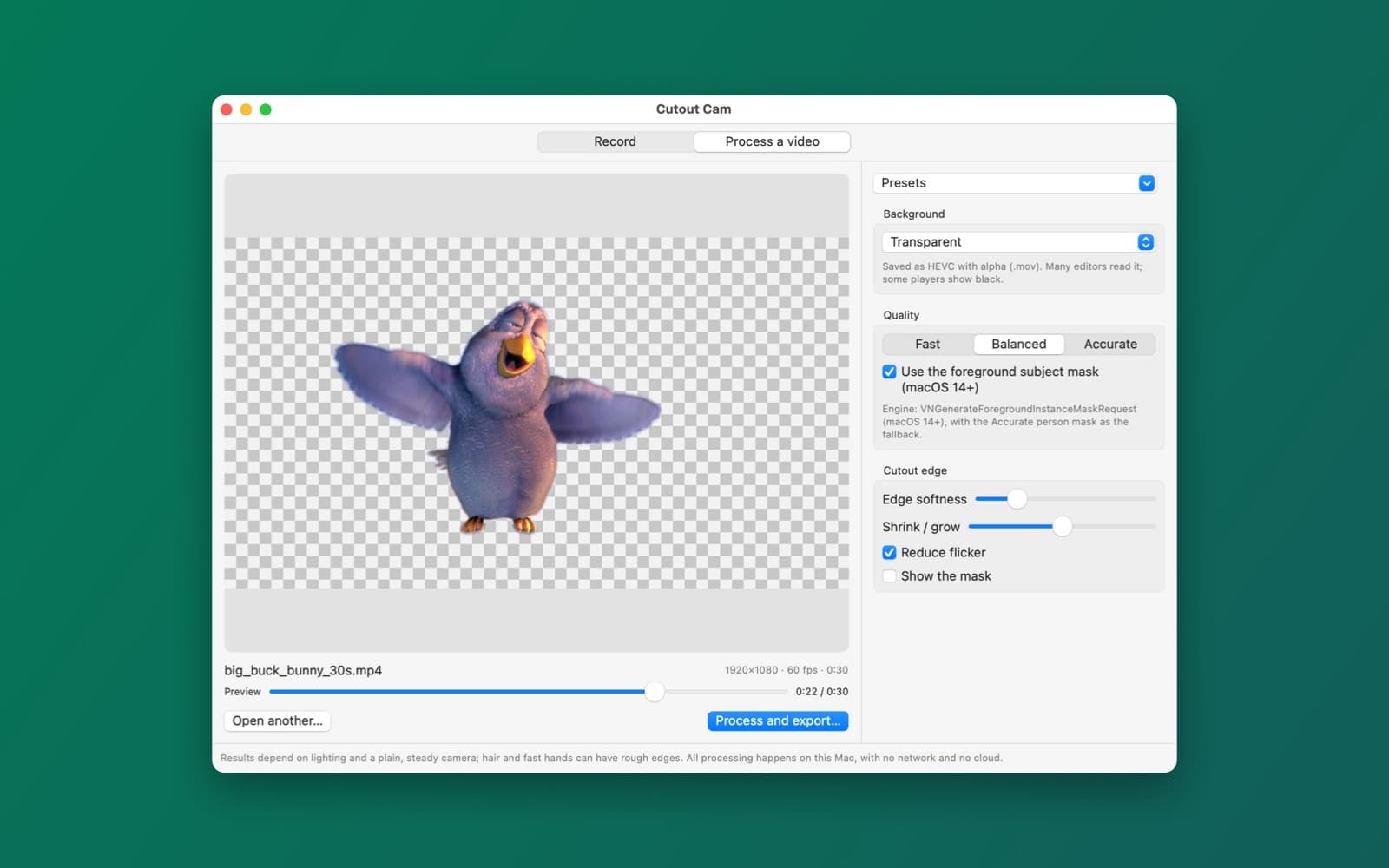
- Process a video. Open a video file, choose the effect and quality, scrub the preview to check the result on any frame, then export. The original sound is kept.
- Transparent video. A transparent background is saved as HEVC with alpha (.mov), which many video editors can read. Some players show it as black.
- Quality. Fast, Balanced or Accurate. On macOS 14 and later it can use the foreground subject mask, which also works on animals and objects, and it falls back to the accurate person mask on macOS 13.
- Clean edges. Sliders for edge softness and for shrinking or growing the cutout, a Reduce flicker switch, and a Show the mask view to see what the app sees.
- Presets. Save your settings and bring them back with one click.
How it was made
One prompt in the SiliconDevKit desktop app, with no follow-up. The prompt asks the builder to read Apple's documentation for the camera, Vision's person and foreground masks, Core Image compositing and AVAssetWriter, including which macOS version each needs, before writing code. The cloud wrote the code and a Mac compiled it, and the first build compiled with no fixes.
Notes
The first time you record, macOS asks for camera and microphone permission. The screenshot shows a short cartoon clip processed to a transparent background. We did not test live recording, the camera, the audio on long clips, how it handles hair and fast movement, or how other players show the transparent file. Results depend on lighting and a steady camera.
Information
- Developer
- SiliconDevKit (generated by AI from a prompt)
- Category
- Video
- Compatibility
- macOS 13 or later, Apple silicon. Apple silicon Macs only (M1 or later), not Intel
- Size
- 545 KB (.dmg)
- Latest version
- 1.0
- Price
- Free
- Signing
- Ad-hoc signed, not notarized
The prompt behind it
This app was generated from the prompt below. Paste it into SiliconDevKit to build your own version, then change it however you like.
Build a native Mac app called Cutout Cam. It records the webcam and removes or replaces the background, live while you record or afterwards on any video file. Pick a blur, a color, a picture or a transparent background, and export a finished video. Works on macOS 13 and later. RESEARCH FIRST (use WebSearch and WebFetch before you write code) Do not rely on memory. Read Apple's documentation for: (1) AVCaptureSession with AVCaptureVideoDataOutput, AVCaptureAudioDataOutput, camera and microphone permissions (NSCameraUsageDescription, NSMicrophoneUsageDescription), camera and microphone pickers; (2) Vision person segmentation: VNGeneratePersonSegmentationRequest and its quality levels (fast, balanced, accurate), the output mask pixel buffer and its size, and what macOS version each needs (check macOS 13 support); also whether VNGenerateForegroundInstanceMaskRequest is available on macOS 14 and later as a higher quality option for post-processing; (3) Core Image compositing: CIFilter blendWithMask (CIBlendWithMask), scaling the mask to the frame size, edge softening with CIGaussianBlur or CIMorphology, temporal smoothing of the mask between frames to stop flicker, CIGaussianBlur for a blurred background, rendering into CVPixelBuffer with a Metal CIContext; (4) AVAssetWriter with AVAssetWriterInputPixelBufferAdaptor for H.264 (.mp4) and for HEVC with alpha (.mov) when the background is transparent, plus audio input; (5) AVAssetReader and AVAssetReaderTrackOutput for reading frames of an existing video; (6) AVAssetWriterInput timing for syncing audio and video. Where a page disagrees with this prompt, follow the page and say what changed. TWO MODES (a tab each) 1. Record: a live preview with the background effect applied. Background choices: None, Blur (strength slider), Solid color (color picker), Picture (choose an image; fill/fit), and Transparent (shown on a checkerboard). A Quality choice (Fast for live use, Balanced, Accurate) with the measured frames per second shown, and a hint to choose Fast if the preview is slow. Record and Stop: the file is saved in the Movies folder as Cutout Cam <date>. With a transparent background the file is HEVC with alpha (.mov); otherwise H.264 .mp4. Microphone on/off with a level meter. Also save the original unprocessed take as a second file when "Keep the original" is on, so the user can re-process it later with a better setting. 2. Process a video: drag a video file in (or Open...). Pick the background effect as above and the quality (use the most accurate request that exists on this macOS; state which), process frame by frame on a background queue with a progress bar, a time estimate and Cancel, keep the original audio, and export. A "Preview" scrubber shows the effect on the frame at the playhead before the whole video is processed. - Mask quality controls: Edge softness, Edge shrink/grow, and "Reduce flicker" (temporal smoothing). A "Show the mask" toggle for debugging the cutout. - Mirror switch for the live preview only (recordings are not mirrored unless chosen). - Show in Finder after saving. Save presets of the settings. HONESTY - Say in the app that the result depends on lighting and a plain, steady camera; hair and fast hands can have rough edges. No cloud: all processing is on this Mac, no network code. First-run screen explains the permissions; denied permissions show a clear message with a System Settings button. QUALITY - macOS 13, Swift 5 language mode, SwiftUI with ObservableObject and @Published. Only Apple frameworks, no packages, no Xcode project or asset catalog. Modular: CameraSource, Segmenter (the Vision request and mask smoothing), Compositor (Core Image), LiveRecorder, VideoProcessor (reader to writer), and the views. All frame work off the main thread, drop live frames instead of queuing, and release pixel buffers promptly (keep memory flat on a long clip). Friendly errors with a Show Details box; handle a full disk, a video that cannot be read, and the camera in use by another app. - The code is compiled later on the user's Mac, not here: check every initializer, argument label and optional, with no force-unwraps. Do not fake anything: no sample footage. - In your reply, say in a few sentences what you built, what the lookups changed (macOS availability of each request), and what you could not test: live speed, mask quality, HEVC with alpha playback and audio sync on long clips were not run.
What it cost
Every AI run that made this demo, one per line. Model: Claude Sonnet 5.5. Tokens are shown as (in / out). “In” counts everything the model read, including text it had already seen in the session at a reduced price.
| Initial prompt(828k in / 85k out) | 147 credits | |
| = | Total(828k in / 85k out) | 147 credits |
Credits are what a build uses on your plan. This counts AI usage only: hosting and the Mac that compiled it are not included.
Version tree
Every change to this app is a new version. Use any build as a template to start your own copy from it; forks that their makers shared appear as branches.
Version 1.0Oct 11, 2026
Build a native Mac app called Cutout Cam. It records the webcam and removes or replaces the background, live while you record or afterwards on any video file. Pick a blur, a color, a picture or a transparent background, and export a finished video. Works on macOS 13 and later. RESEARCH FIRST (use WebSearch and WebFetch before you write code) Do not rely on memory. Read Apple's documentation for: (1) AVCaptureSession with AVCaptureVideoDataOutput, AVCaptureAudioDataOutput, camera and microphone permissions (NSCameraUsageDescription, NSMicrophoneUsageDescription), camera and microphone pickers; (2) Vision person segmentation: VNGeneratePersonSegmentationRequest and its quality levels (fast, balanced, accurate), the output mask pixel buffer and its size, and what macOS version each needs (check macOS 13 support); also whether VNGenerateForegroundInstanceMaskRequest is available on macOS 14 and later as a higher quality option for post-processing; (3) Core Image compositing: CIFilter blendWithMask (CIBlendWithMask), scaling the mask to the frame size, edge softening with CIGaussianBlur or CIMorphology, temporal smoothing of the mask between frames to stop flicker, CIGaussianBlur for a blurred background, rendering into CVPixelBuffer with a Metal CIContext; (4) AVAssetWriter with AVAssetWriterInputPixelBufferAdaptor for H.264 (.mp4) and for HEVC with alpha (.mov) when the background is transparent, plus audio input; (5) AVAssetReader and AVAssetReaderTrackOutput for reading frames of an existing video; (6) AVAssetWriterInput timing for syncing audio and video. Where a page disagrees with this prompt, follow the page and say what changed. TWO MODES (a tab each) 1. Record: a live preview with the background effect applied. Background choices: None, Blur (strength slider), Solid color (color picker), Picture (choose an image; fill/fit), and Transparent (shown on a checkerboard). A Quality choice (Fast for live use, Balanced, Accurate) with the measured frames per second shown, and a hint to choose Fast if the preview is slow. Record and Stop: the file is saved in the Movies folder as Cutout Cam <date>. With a transparent background the file is HEVC with alpha (.mov); otherwise H.264 .mp4. Microphone on/off with a level meter. Also save the original unprocessed take as a second file when "Keep the original" is on, so the user can re-process it later with a better setting. 2. Process a video: drag a video file in (or Open...). Pick the background effect as above and the quality (use the most accurate request that exists on this macOS; state which), process frame by frame on a background queue with a progress bar, a time estimate and Cancel, keep the original audio, and export. A "Preview" scrubber shows the effect on the frame at the playhead before the whole video is processed. - Mask quality controls: Edge softness, Edge shrink/grow, and "Reduce flicker" (temporal smoothing). A "Show the mask" toggle for debugging the cutout. - Mirror switch for the live preview only (recordings are not mirrored unless chosen). - Show in Finder after saving. Save presets of the settings. HONESTY - Say in the app that the result depends on lighting and a plain, steady camera; hair and fast hands can have rough edges. No cloud: all processing is on this Mac, no network code. First-run screen explains the permissions; denied permissions show a clear message with a System Settings button. QUALITY - macOS 13, Swift 5 language mode, SwiftUI with ObservableObject and @Published. Only Apple frameworks, no packages, no Xcode project or asset catalog. Modular: CameraSource, Segmenter (the Vision request and mask smoothing), Compositor (Core Image), LiveRecorder, VideoProcessor (reader to writer), and the views. All frame work off the main thread, drop live frames instead of queuing, and release pixel buffers promptly (keep memory flat on a long clip). Friendly errors with a Show Details box; handle a full disk, a video that cannot be read, and the camera in use by another app. - The code is compiled later on the user's Mac, not here: check every initializer, argument label and optional, with no force-unwraps. Do not fake anything: no sample footage. - In your reply, say in a few sentences what you built, what the lookups changed (macOS availability of each request), and what you could not test: live speed, mask quality, HEVC with alpha playback and audio sync on long clips were not run.
Record the webcam or process a video file and blur, replace or remove the background, all on this Mac.
Opening it for the first time
- Open the .dmg and drag Cutout Cam onto the Applications folder.
- Open it from Applications. macOS may say it can’t check the app for malicious software. Click Done.
- Open System Settings → Privacy & Security and click Open Anyway. This is needed once. Why this happens. To share an app without the warning, see how to notarize it.
You might also like
 Get
GetPlayTube
Paste a video link and watch it in a clean player, with no ads.
 Get
GetAdMute
Listens to your Mac's audio and mutes the ads, then brings the sound back.
 Get
GetToob-Downer
Paste a video link and save the video to your Mac, with a queue to keep track.
 Get
GetAgent Swarm
Send one task to Claude, Gemini and Hermes at once.