
Audio
Supertonic TTS
Turn typed or pasted text into natural speech on your Mac, with no cloud.
- Category
- Audio
- Requires
- macOS 14+
- Size
- 10 MB
- Price
- Free
Preview
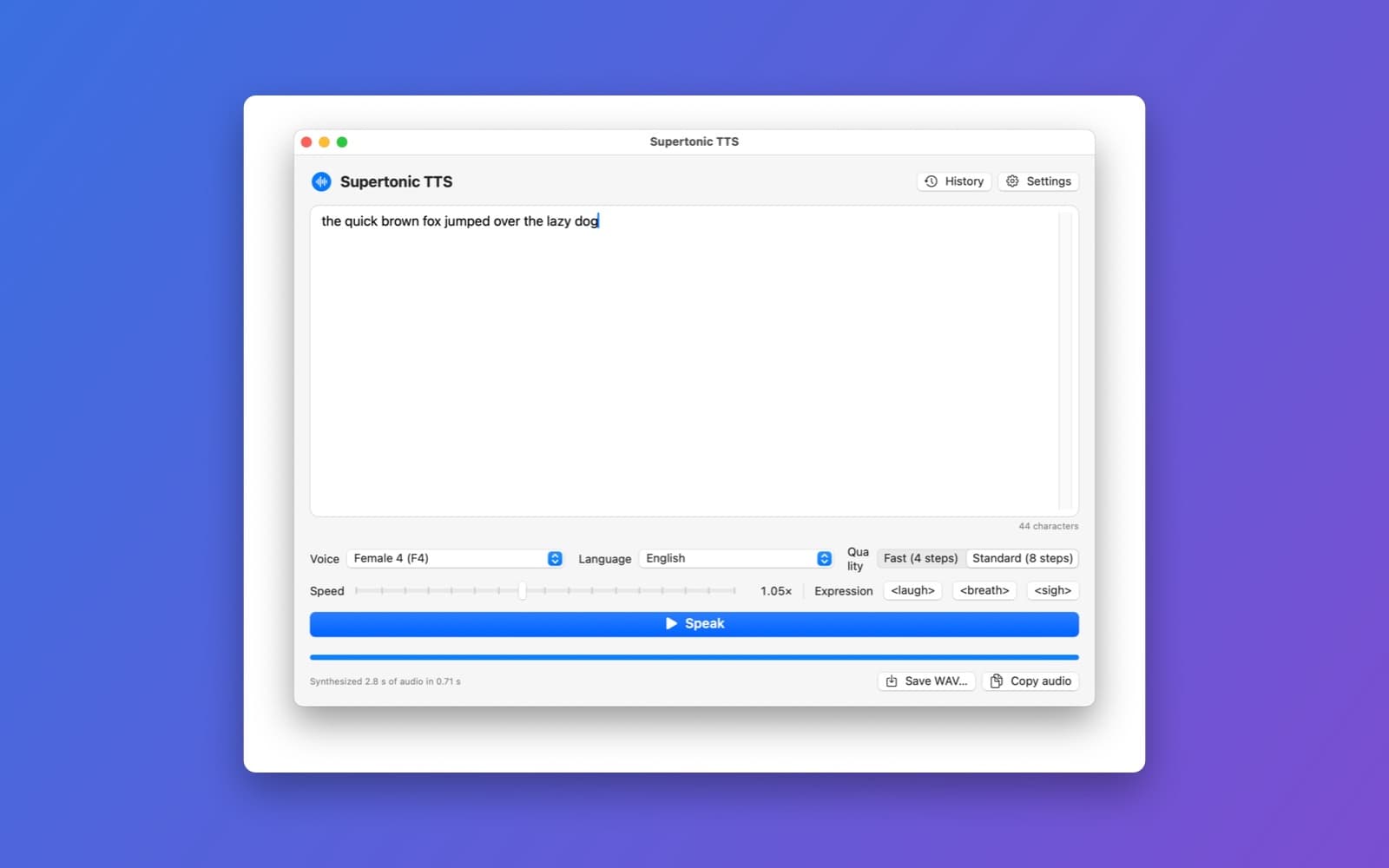
About Supertonic TTS
Supertonic TTS reads your text aloud with a speech model that runs entirely on your Mac. Type or paste text, pick a voice, press Speak, and save the result as a WAV file. Nothing you write is sent anywhere.
What it does
- Ten voices, many languages. Female 1 to 5 and Male 1 to 5, in English and 30 other languages, or Auto.
- Speed and quality. A speed slider, and Fast (4 steps) or Standard (8 steps) for how carefully the voice is rendered.
- Expressions. Buttons that put
<laugh>,<breath>or<sigh>into your text. - Save and copy. Save the audio as a WAV file or copy it. The window shows how long the speech took to make: 2.8 seconds of audio in 0.71 seconds in our test.
- History and menu bar. Recent texts to speak again, and a menu bar item to speak the clipboard.
How it was made
One prompt in the SiliconDevKit desktop app, with the open-source Supertonic project's link in it. The cloud kept the project's own speech code and wrote a Mac app around it, and a Mac compiled it.
Notes
The speech model is about 400 MB and is not inside the app. The app downloads it the first time you open it, so you need an internet connection and some disk space once. After that it works offline. This app was built in the desktop app's unsafe mode, from someone else's code, so it is not a template, and SiliconDevKit has not reviewed that code. It is based on Supertonic (MIT license), and the Supertonic 3 model has its own OpenRAIL-M license. We tested typing text and speaking it. The language list, the Save and Copy buttons, History, the menu bar item and dropping a text file were not all checked.
Information
- Developer
- SiliconDevKit (generated by AI from a prompt)
- Category
- Audio
- Compatibility
- macOS 14 or later, Apple silicon. Apple silicon Macs only (M1 or later), not Intel
- Size
- 10 MB (.dmg)
- Latest version
- 1.0
- Price
- Free
- Signing
- Ad-hoc signed, not notarized
The prompt behind it
This app was generated from the prompt below. Paste it into SiliconDevKit to build your own version, then change it however you like.
Build a simple, good-looking Mac text-to-speech app called Supertonic TTS, based on the Swift example in this open-source project: https://github.com/supertone-oss-archive/supertonic The app turns typed or pasted text into natural speech completely on the Mac, with no cloud. It uses the project's Supertonic 3 speech model through ONNX Runtime. Keep the project's own working speech code. Do not write a speech engine or a tokenizer yourself. HOW TO PORT IT (read this first) - The repo is in Imported/. Read its README and then the swift/ folder: swift/Sources/Helper.swift is the engine (text cleanup and language tags, the unicode tokenizer, sentence chunking, the four ONNX stages, voice styles, WAV writing) and swift/Sources/ExampleONNX.swift shows how it is called. Ignore the other language folders, ios/, web/ and the test script. - Copy Helper.swift into Sources/App/ and change only what the build needs. Replace ExampleONNX.swift (the command-line tool) with the app. It imports OnnxRuntimeBindings (the ONNX Runtime package is available to this build). Because that package needs it, target macOS 14, Swift 5 language mode, and use ObservableObject and @Published. - Run the speech work off the main thread (a Task or an actor) and never block the UI. Create the ONNX session once and reuse it. Fall back to the CPU; do not require a GPU. - Keep the project's license: show "Based on Supertonic (MIT license). Model: Supertonic 3 (OpenRAIL-M license)" in an About section, with a link to the model's license page. - The code is compiled later on the user's Mac, not here, so write carefully and re-check every initializer, argument label and optional. THE MODEL (downloaded by the app, never bundled) The weights are about 400 MB. The app downloads them the first time it opens, into Application Support/<app name>/Models, using the same folder layout the example expects (onnx/ and voice_styles/). Use exactly these URLs, a pinned revision of the Hugging Face repo supertone-oss-archive/supertonic-3: https://huggingface.co/supertone-oss-archive/supertonic-3/resolve/aafc6e32416a594460b32413efc49d7fe4ce6d46/<path> Files (path and size in bytes): onnx/duration_predictor.onnx 3700147; onnx/text_encoder.onnx 36416150; onnx/vector_estimator.onnx 256534781; onnx/vocoder.onnx 101424195; onnx/tts.json 8253; onnx/unicode_indexer.json 277676; voice_styles/F1.json to F5.json and voice_styles/M1.json to M5.json (about 292,000 each; take the real size from the server's Content-Length). Show a clear first-launch screen: what is being downloaded and why, total size, overall progress, the current file, speed, and Cancel, Retry and Resume buttons. Check each file's size before trusting it. Download to a temporary place and move a file into Models only when it is complete, so a failed download never replaces a working install. Keep working offline once everything is there. Add a Settings button to re-check or re-download the model. If find_model returns a different official URL for the same file, prefer these. THE APP A single clean window, dark friendly, with light mode too. - A large text area to type or paste into, with a character count. Drag a .txt file onto the window to load it. - Voice picker: the ten preset voices, F1 to F5 and M1 to M5, with Female 1, Male 3 style names. Language picker with the 31 languages in the README (Arabic, Bulgarian, Croatian, Czech, Danish, Dutch, English, Estonian, Finnish, French, German, Greek, Hindi, Hungarian, Indonesian, Italian, Japanese, Korean, Latvian, Lithuanian, Polish, Portuguese, Romanian, Russian, Slovak, Slovenian, Spanish, Swedish, Turkish, Ukrainian, Vietnamese) plus "Auto" (the project's language-agnostic setting, "na"). Default to English. - Speed slider (the example's default is 1.05) and a quality control for the number of denoising steps (the example default is 8, with a lower faster option). - Expression buttons that insert the tags the project documents: <laugh>, <breath> and <sigh>. Do not invent other tags. - A big Speak button. Long text is split into sentences with the project's own chunking, spoken as each chunk is ready, with a progress bar and a Stop button. Show how long synthesis took. - Save the audio as a WAV file (44.1 kHz, using the project's WAV writer) with a standard save panel, and a Copy audio button. - A history list of recent texts to speak again, saved as JSON in Application Support, with Delete and Clear. - A menu bar item with "Speak clipboard" and "Stop", and the keyboard shortcut Cmd+Return to speak. Make sure shortcuts do not break normal typing. - Friendly errors: model not downloaded, no network during download, disk full, unsupported text (empty after cleanup), and a failed synthesis with the real reason in a details box. QUALITY - Keep the code modular: a model downloader, a speech service wrapping the project's TextToSpeech class, an audio player (AVAudioEngine or AVAudioPlayer), and the views. No other dependencies. Do not use an Xcode project or asset catalog. - Do not fake audio, progress or results. If something from the project cannot be made to work, say exactly what was left out. - In your reply, say in a few sentences what you kept from the project, what you wrote new, and anything that may not work.
What it cost
Every AI run that made this demo, one per line. Model: Claude Sonnet 5.5. Tokens are shown as (in / out). “In” counts everything the model read, including text it had already seen in the session at a reduced price.
| Initial prompt(511k in / 28k out) | 60 credits | |
| = | Total(511k in / 28k out) | 60 credits |
Credits are what a build uses on your plan. This counts AI usage only: hosting and the Mac that compiled it are not included.
Opening it for the first time
- Open the .dmg and drag Supertonic TTS onto the Applications folder.
- Open it from Applications. macOS may say it can’t check the app for malicious software. Click Done.
- Open System Settings → Privacy & Security and click Open Anyway. This is needed once. Why this happens. To share an app without the warning, see how to notarize it.
You might also like
 Get
GetPlayTube
Paste a video link and watch it in a clean player, with no ads.
 Get
GetAdMute
Listens to your Mac's audio and mutes the ads, then brings the sound back.
 Get
GetToob-Downer
Paste a video link and save the video to your Mac, with a queue to keep track.
 Get
GetAgent Swarm
Send one task to Claude, Gemini and Hermes at once.