
Photo
Screenshot + EasyBlur
Find every object in a screenshot and blur any of them with one click.
- Category
- Photo
- Requires
- macOS 13+
- Size
- 380 KB
- Price
- Free
Preview
About Screenshot + EasyBlur
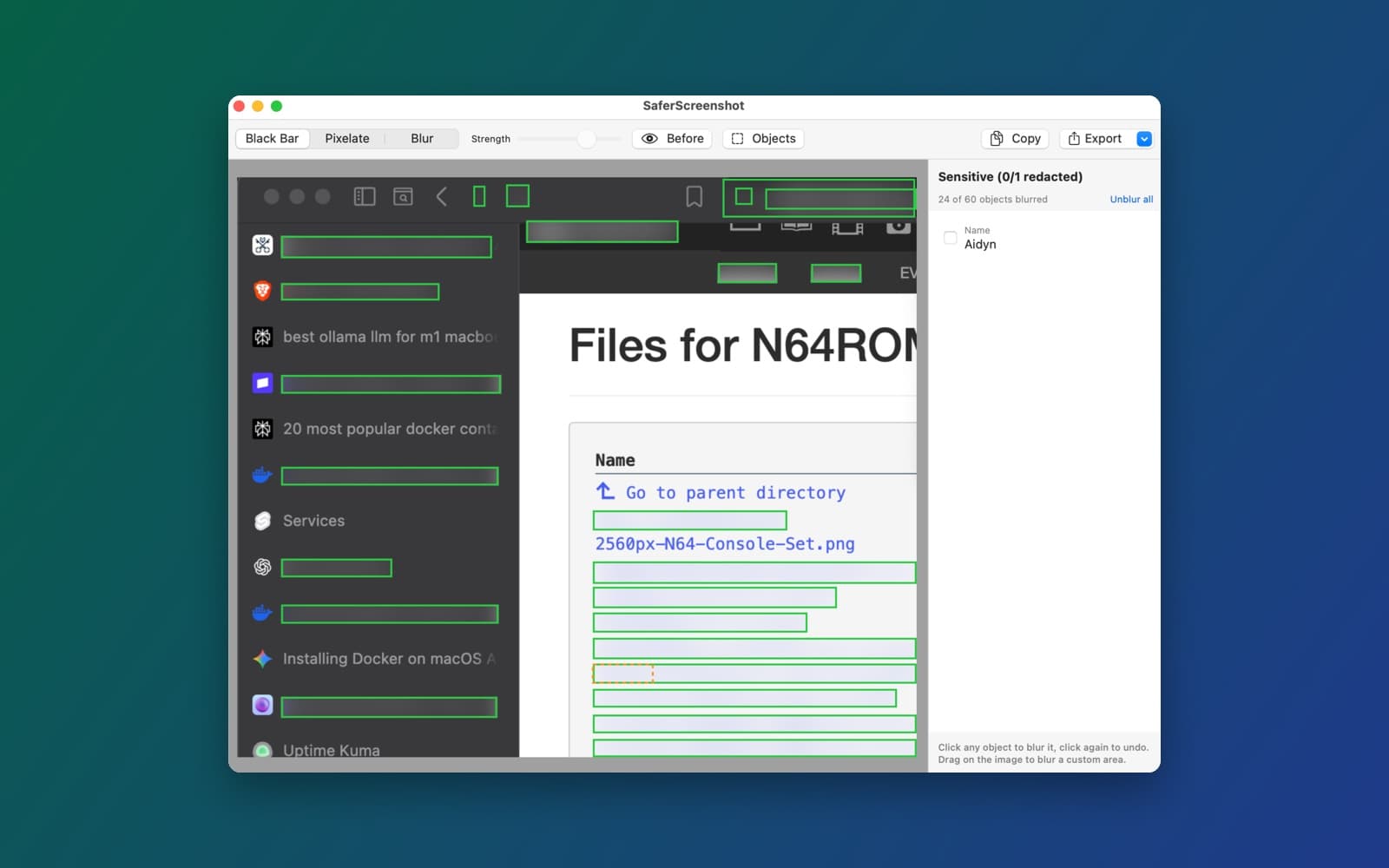
Screenshot + EasyBlur is Screenshot + AutoBlur with one big change: it finds every object in a screenshot, not just the sensitive ones. Click any object to blur it, and click it again to undo.
It started when a screenshot of a browser needed to keep the address bar but hide the installed extensions. Now you can blur exactly that, in one click, and everything else stays sharp.
What it does
- Every object. The preview outlines each line of text, plus icons, buttons, images and panels. Hover over one to highlight it, and click to blur it with a standard blur.
- Still automatic for sensitive text. Emails, phone numbers, addresses, card numbers, API keys, passwords, tokens and names are found and covered as before. The side panel lists them and counts how many objects are blurred, with an Unblur all button.
- Your own areas. Drag over any part of the image to blur a custom area.
- Three ways to cover. Black bars, pixelation or blur, with a strength slider, and a Before view to compare.
- Drop, paste or capture. Drag in a screenshot, choose a file, paste, or capture an area of the screen with a shortcut. Then copy the result or export a PNG or JPEG.
How it was made
The two steps are on this page. The prompt below made Screenshot + AutoBlur. One follow-up message then asked for all objects to be found and toggled with a click. That made version 1.0.1. You can start from this build as a template and keep changing it.
Notes
Everything runs on your Mac, with no network calls and no uploads. Objects other than text are found by grouping edges in the image, not by an object detector, so a row of small icons can come out as one object or several. The window title still says SaferScreenshot, the app's original name. We tried it on a real screenshot of a browser window, as shown above. Text recognition can miss small or low-contrast text, so check the preview before you share the image.
Information
- Developer
- SiliconDevKit (generated by AI from a prompt)
- Category
- Photo
- Compatibility
- macOS 13 or later, Apple silicon. Apple silicon Macs only (M1 or later), not Intel
- Size
- 380 KB (.dmg)
- Latest version
- 1.0.1
- Price
- Free
- Signing
- Ad-hoc signed, not notarized
The prompt behind it
This app was generated from the prompt below. Paste it into SiliconDevKit to build your own version, then change it however you like.
Build a menu bar app called SaferScreenshot that automatically detects and redacts sensitive information from screenshots entirely on-device. Clicking the menu bar icon opens a popover with a drop zone that accepts screenshot files dragged from Finder or the browser, a Choose File button, and support for pasting directly from the clipboard or capturing a selected screen area via a shortcut. Use on-device Apple frameworks: run Vision's VNRecognizeTextRequest (OCR) paired with NSDataDetector and regex pattern matching to identify sensitive text (emails, phone numbers, street addresses, credit cards, API keys, passwords, and tokens). Combine this with Apple's NaturalLanguage framework (NLTagger) to extract personal names. Detect bounding boxes around sensitive tokens and overlay adjustable redactions (solid black bars, pixelation, or heavy gaussian blur). Show the result in an interactive preview window where users can click detected boxes to toggle them on or off, drag custom redaction rectangles over unflagged areas, and toggle a before-and-after view. Add buttons to copy the sanitized image directly to the clipboard or export it as a clean PNG/JPEG. Everything processes locally with zero network calls and no cloud uploads.
What it cost
Every AI run that made this demo, one per line. Model: Claude Sonnet 5.5. Tokens are shown as (in / out). “In” counts everything the model read, including text it had already seen in the session at a reduced price.
| Initial prompt(212k in / 25k out) | 43 credits | |
| + | Follow-up 1(358k in / 15k out) | 35 credits |
| = | Total(570k in / 40k out) | 78 credits |
Credits are what a build uses on your plan. This counts AI usage only: hosting and the Mac that compiled it are not included. This demo took 2 attempts, and all of them are counted.
Version tree
Every change to this app is a new version. Use any build as a template to start your own copy from it; forks that their makers shared appear as branches.
Version 1.0.1Oct 10, 2026
now change the app so it identifies ALL 'objects' in the screenshotted image (not just the sensitive items) - and user can 1-click an object container in the "preview" to instantly toggle a standard blur. for example, sometimes i screenshot brave browser and want to include address bar but want to blur my installed browser extensions
Menu bar app that detects every object in a screenshot, auto-redacts sensitive info, and lets you click any object to blur it, all on-device.
Opening it for the first time
- Open the .dmg and drag Screenshot + EasyBlur onto the Applications folder.
- Open it from Applications. macOS may say it can’t check the app for malicious software. Click Done.
- Open System Settings → Privacy & Security and click Open Anyway. This is needed once. Why this happens. To share an app without the warning, see how to notarize it.
You might also like
 Get
GetPlayTube
Paste a video link and watch it in a clean player, with no ads.
 Get
GetAdMute
Listens to your Mac's audio and mutes the ads, then brings the sound back.
 Get
GetToob-Downer
Paste a video link and save the video to your Mac, with a queue to keep track.
 Get
GetAgent Swarm
Send one task to Claude, Gemini and Hermes at once.