
Productivity
Drop Router
Drop any file on it and it opens in the app you chose for that file type.
- Category
- Productivity
- Requires
- macOS 13+
- Size
- 0.5 MB
- Price
- Free
Preview
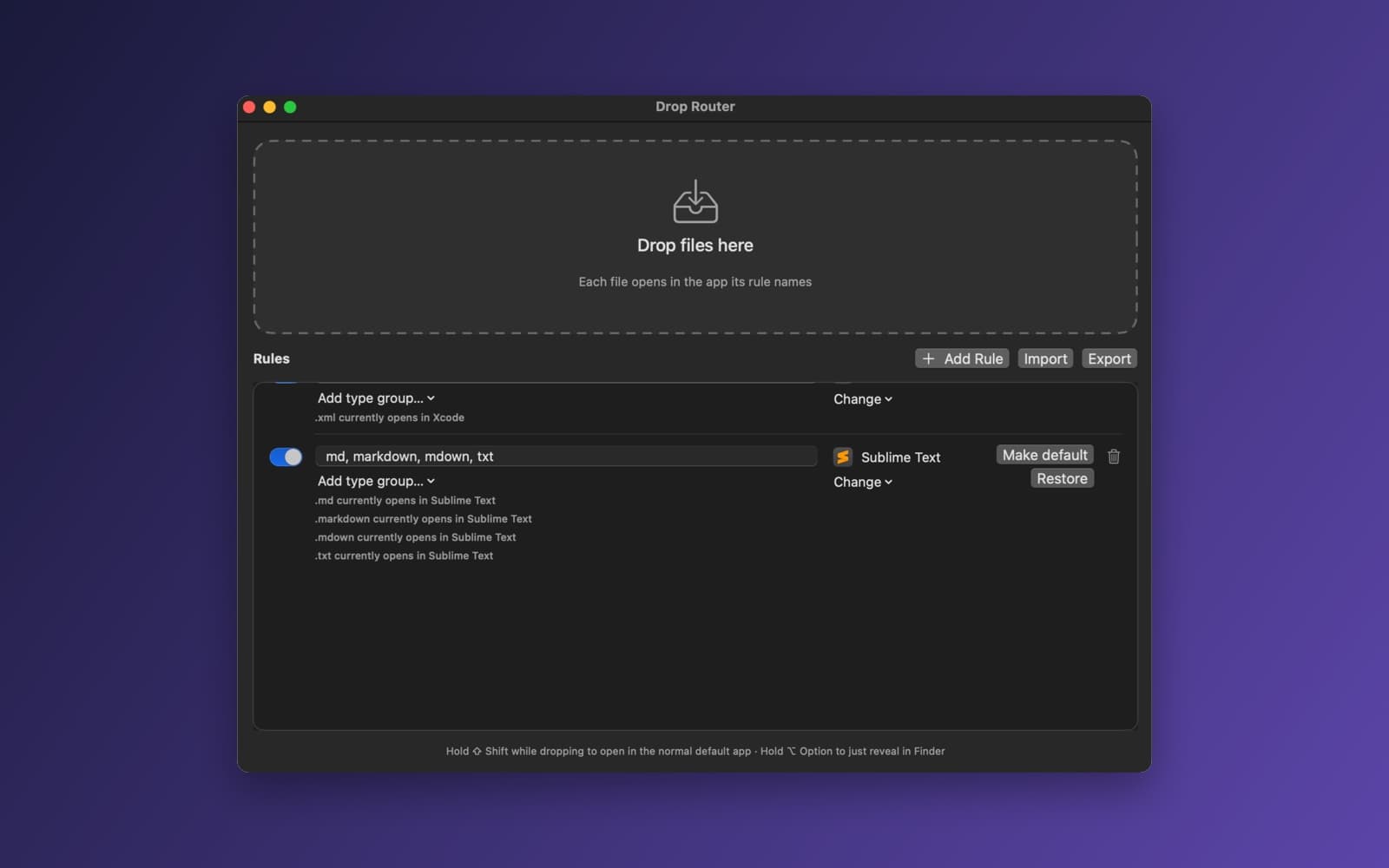
About Drop Router
Drop Router is a file-type router for your Mac. You make rules like "md files open in Sublime Text", then drop files on the window and each one opens in the app its rule names. It can also change your Mac's default app for a file type, so a double-click in Finder does the same.
What it does
- Drop zone. Drop one file or many onto the big dashed box. Each opens in the app its rule picks, and files for the same app open together.
- Your own rules. Each rule has an on and off switch, the file extensions it covers (for example
md, markdown, mdown, txt), and the app to use. Add Rule, Import and Export sit above the list, so rules can be shared as a file. - Type groups. Add a whole group of file types to a rule instead of listing extensions one by one.
- Make default. A button on each rule sets that app as the Mac's default for its extensions. The rule shows what each extension currently opens in, and Restore puts the earlier default back.
- Shortcuts for a single drop. Hold Shift while dropping to open files in their normal default app, or Option to just show them in Finder.
Notes
If Sublime Text is installed, the app starts with a rule that opens md, markdown, mdown and txt files in it. Nothing else is set up for you. Changing a default app is done through macOS, which may ask you to confirm, and some file types cannot be changed. The extra features the prompt asked for, such as the menu bar icon and the Recent list, were not all checked.
Information
- Developer
- SiliconDevKit (generated by AI from a prompt)
- Category
- Productivity
- Compatibility
- macOS 13 or later, Apple silicon. Apple silicon Macs only (M1 or later), not Intel
- Size
- 0.5 MB (.dmg)
- Latest version
- 1.0
- Price
- Free
- Signing
- Ad-hoc signed, not notarized
The prompt behind it
This app was generated from the prompt below. Paste it into SiliconDevKit to build your own version, then change it however you like.
Build a simple, beautiful Mac app called Drop Router. You drop any file on it, and it opens the file in the right app, decided by rules you set (for example md files open in Sublime Text, csv in Numbers, mkv in IINA). It can also change your Mac's default app for a file type, so a double-click in Finder opens the same app. It is a free, lightweight file-type router. THE MAIN WINDOW - A compact window with two parts: a big drop zone on top and the rules list below. - The drop zone is a large dashed rounded rectangle that says "Drop files here" and highlights when a drag is over it. Dropping one or many files and folders opens each file with the app its rule names, then shows a small confirmation ("Opened 3 files in Sublime Text") that fades away. Group several dropped files by app so each app is launched once with all of its files (NSWorkspace.shared.open(_:withApplicationAt:configuration:completionHandler:)). - Files with no rule: show a small sheet with the file name, the list of apps that can open it (NSWorkspace.shared.urlsForApplications(toOpen:), each with its icon and name), a "Choose another app" button (an open panel on /Applications) and a check box "Always use this app for .ext" (on by default). Choosing makes a rule and opens the file. - Folders: a setting says what to do with a dropped folder (Open in Finder, which is the default, Reveal in Finder, or Ignore). - Hold Shift while dropping to open the files in their normal default app instead, and hold Option to just reveal them in Finder. Show these hints in a quiet line at the bottom of the window. THE RULES - A table of rules: an on/off switch, the extensions (comma separated, with or without the dot, case-insensitive, for example "md, markdown, mdown"), the app (its icon and name), and a delete button. Add Rule opens a row to fill in: type the extensions, then choose the app from a menu of the apps that can open that kind of file (found with the system) or pick any app with the open panel. - Rules are matched by extension first. Also let a rule match a type group (Text, Images, Audio, Video, Archives, Code) chosen from a menu, using UTType conformance (UniformTypeIdentifiers), checked after the extension rules. The first matching enabled rule wins; extension rules beat group rules. Rules can be reordered by dragging. - First launch: if Sublime Text is installed (bundle identifiers com.sublimetext.4 or com.sublimetext.3, or found by name in /Applications), create the rule "md, markdown, mdown, txt" for it, switched on. Do not make up other rules, and do not assume any app is installed. Rules whose app is missing show a warning triangle and "App not found" with a Choose button. - Save the rules as JSON in Application Support/Drop Router, remember each app by its bundle identifier and re-resolve it with NSWorkspace.shared.urlForApplication(withBundleIdentifier:). Import and Export buttons read and write that JSON so rules can be shared. MAKING IT THE DEFAULT (optional per rule) - Each rule row has a "Make default" button. It sets the default app for every extension of the rule using NSWorkspace.shared.setDefaultApplication(at:toOpen:) with the UTType made from the extension (UTType(filenameExtension:)), and tells the user plainly what happened for each extension: done, macOS asked for confirmation, or not possible (some types cannot be changed). Treat macOS showing its own confirmation as normal. Never edit LaunchServices files directly, and never write Apple's private defaults. - Show next to each extension the current default app (NSWorkspace.shared.urlForApplication(toOpen:)) so the user can see what is set now. A "Restore" button sets the previous default back for the types this app changed (remember the previous default app when changing it). MORE WAYS TO USE IT - A menu bar icon is also a drop target: dragging files onto it opens them with the rules, the same as the window. The menu has Show Window, Open File... (an open panel, routed through the rules), Recent (the last 10 files routed, which open again when clicked) and Quit. Add a setting to hide the Dock icon. - A Settings window: folder behaviour, Launch at Login (SMAppService.mainApp, macOS 13), show in the menu bar, keep the Dock icon. - Dropping files must work from Finder, the Desktop, a browser's downloads and other apps, including file promises from apps that create the file on demand (accept both file URLs and NSFilePromiseReceiver). QUALITY - No special macOS permission may be needed. Do not read the contents of the dropped files. Use arguments and URLs only, never a shell or a command line. - A bad rule, a missing app, a file that vanished or an app that fails to open a file show a short friendly message, never a crash. Keep the UI smooth and never block the main thread. - Keep the code modular: a rule model and store, a router (match a file to an app), an opener, a default-app manager, the views and the menu bar controller. Use only Apple frameworks and no Xcode project or asset catalog. Target macOS 13. - Do not fake anything. In your reply, say in a few sentences what the app does and what may not work, especially changing system default apps, which macOS may ask the user to confirm.
What it cost
The cost of this demo was not recorded in our usage log. Demos built through the live build system show every run with its tokens and cost.
Version tree
Every change to this app is a new version. Use any build as a template to start your own copy from it; forks that their makers shared appear as branches.
Version 1.0Oct 9, 2026
Build a simple, beautiful Mac app called Drop Router. You drop any file on it, and it opens the file in the right app, decided by rules you set (for example md files open in Sublime Text, csv in Numbers, mkv in IINA). It can also change your Mac's default app for a file type, so a double-click in Finder opens the same app. It is a free, lightweight file-type router. THE MAIN WINDOW - A compact window with two parts: a big drop zone on top and the rules list below. - The drop zone is a large dashed rounded rectangle that says "Drop files here" and highlights when a drag is over it. Dropping one or many files and folders opens each file with the app its rule names, then shows a small confirmation ("Opened 3 files in Sublime Text") that fades away. Group several dropped files by app so each app is launched once with all of its files (NSWorkspace.shared.open(_:withApplicationAt:configuration:completionHandler:)). - Files with no rule: show a small sheet with the file name, the list of apps that can open it (NSWorkspace.shared.urlsForApplications(toOpen:), each with its icon and name), a "Choose another app" button (an open panel on /Applications) and a check box "Always use this app for .ext" (on by default). Choosing makes a rule and opens the file. - Folders: a setting says what to do with a dropped folder (Open in Finder, which is the default, Reveal in Finder, or Ignore). - Hold Shift while dropping to open the files in their normal default app instead, and hold Option to just reveal them in Finder. Show these hints in a quiet line at the bottom of the window. THE RULES - A table of rules: an on/off switch, the extensions (comma separated, with or without the dot, case-insensitive, for example "md, markdown, mdown"), the app (its icon and name), and a delete button. Add Rule opens a row to fill in: type the extensions, then choose the app from a menu of the apps that can open that kind of file (found with the system) or pick any app with the open panel. - Rules are matched by extension first. Also let a rule match a type group (Text, Images, Audio, Video, Archives, Code) chosen from a menu, using UTType conformance (UniformTypeIdentifiers), checked after the extension rules. The first matching enabled rule wins; extension rules beat group rules. Rules can be reordered by dragging. - First launch: if Sublime Text is installed (bundle identifiers com.sublimetext.4 or com.sublimetext.3, or found by name in /Applications), create the rule "md, markdown, mdown, txt" for it, switched on. Do not make up other rules, and do not assume any app is installed. Rules whose app is missing show a warning triangle and "App not found" with a Choose button. - Save the rules as JSON in Application Support/Drop Router, remember each app by its bundle identifier and re-resolve it with NSWorkspace.shared.urlForApplication(withBundleIdentifier:). Import and Export buttons read and write that JSON so rules can be shared. MAKING IT THE DEFAULT (optional per rule) - Each rule row has a "Make default" button. It sets the default app for every extension of the rule using NSWorkspace.shared.setDefaultApplication(at:toOpen:) with the UTType made from the extension (UTType(filenameExtension:)), and tells the user plainly what happened for each extension: done, macOS asked for confirmation, or not possible (some types cannot be changed). Treat macOS showing its own confirmation as normal. Never edit LaunchServices files directly, and never write Apple's private defaults. - Show next to each extension the current default app (NSWorkspace.shared.urlForApplication(toOpen:)) so the user can see what is set now. A "Restore" button sets the previous default back for the types this app changed (remember the previous default app when changing it). MORE WAYS TO USE IT - A menu bar icon is also a drop target: dragging files onto it opens them with the rules, the same as the window. The menu has Show Window, Open File... (an open panel, routed through the rules), Recent (the last 10 files routed, which open again when clicked) and Quit. Add a setting to hide the Dock icon. - A Settings window: folder behaviour, Launch at Login (SMAppService.mainApp, macOS 13), show in the menu bar, keep the Dock icon. - Dropping files must work from Finder, the Desktop, a browser's downloads and other apps, including file promises from apps that create the file on demand (accept both file URLs and NSFilePromiseReceiver). QUALITY - No special macOS permission may be needed. Do not read the contents of the dropped files. Use arguments and URLs only, never a shell or a command line. - A bad rule, a missing app, a file that vanished or an app that fails to open a file show a short friendly message, never a crash. Keep the UI smooth and never block the main thread. - Keep the code modular: a rule model and store, a router (match a file to an app), an opener, a default-app manager, the views and the menu bar controller. Use only Apple frameworks and no Xcode project or asset catalog. Target macOS 13. - Do not fake anything. In your reply, say in a few sentences what the app does and what may not work, especially changing system default apps, which macOS may ask the user to confirm.
Drop any file and it opens in the right app, chosen by rules you set per file type.
Opening it for the first time
- Open the .dmg and drag Drop Router onto the Applications folder.
- Open it from Applications. macOS may say it can’t check the app for malicious software. Click Done.
- Open System Settings → Privacy & Security and click Open Anyway. This is needed once. Why this happens. To share an app without the warning, see how to notarize it.
You might also like
 Get
GetPlayTube
Paste a video link and watch it in a clean player, with no ads.
 Get
GetAdMute
Listens to your Mac's audio and mutes the ads, then brings the sound back.
 Get
GetToob-Downer
Paste a video link and save the video to your Mac, with a queue to keep track.
 Get
GetAgent Swarm
Send one task to Claude, Gemini and Hermes at once.