
Network
Docker Wrapper
Run Uptime Kuma in Docker from your menu bar, with a one-click install of the Colima Docker runtime.
- Category
- Network
- Requires
- macOS 13+
- Size
- 1.1 MB
- Price
- Free
Preview
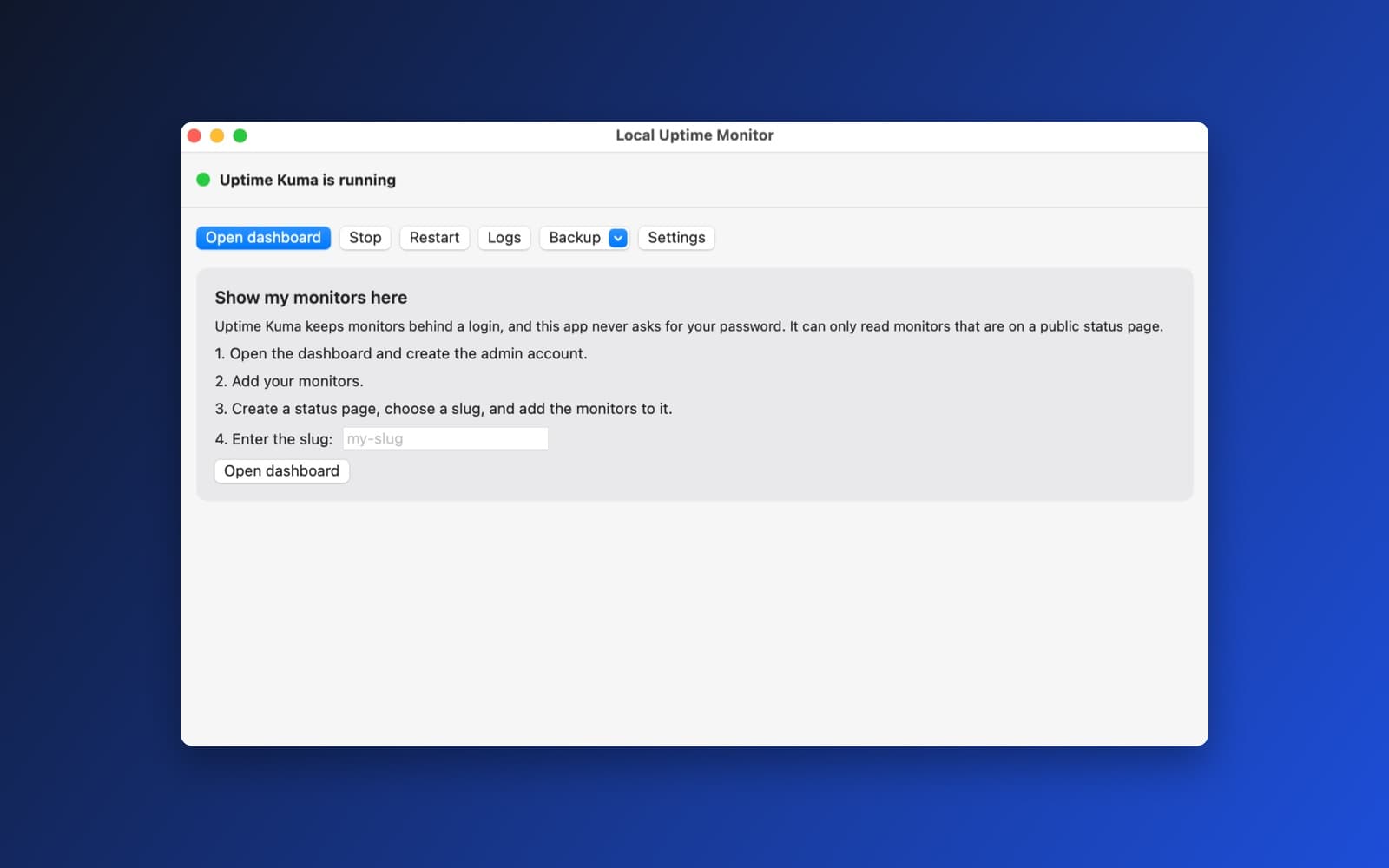
About Docker Wrapper
Docker Wrapper runs Uptime Kuma, the open-source uptime monitor, on your own Mac and gives it a native control panel. It also called Local Uptime Monitor while it was being built. A menu bar icon is green when everything is up and red when something is down, and a window starts, stops and checks the service for you.
It uses Colima, a small command-line Docker runtime, so you do not need Docker Desktop. If Docker is not found, the app shows an Install Colima and Docker button that does it for you.
What it does
- No Docker Desktop. If the
dockertool is missing, one button runsbrew install colima dockerandcolima start, with the output streamed into a log, a progress bar and Cancel. If you do not have Homebrew, the button opens brew.sh instead, and the app never installs Homebrew itself. - One-click start. It runs the official Uptime Kuma image on a local address that only your Mac can reach. A port picker handles the case where 3001 is taken.
- Your monitors at a glance. You add monitors in the Uptime Kuma dashboard, which opens from the app. The app then reads one public status page you create and lists each monitor with its up or down state and last response time, refreshed every 30 seconds, with a macOS notification when one changes.
- Care for your data. Logs, backup and restore, an update check that backs up first, and a "Remove everything" button that asks before it deletes anything.
How it was made
One prompt in the SiliconDevKit desktop app, with the Uptime Kuma project's link in it, built version 1.0 on Docker Desktop. A follow-up message then asked for the headless version: "change this to use headless CLI version of Docker", with the Colima steps pasted in, and "if it's not detected, show a 1-click install btn". That made 1.1. The prompt shown below is the first one, so on its own it makes the Docker Desktop version.
Notes
The screenshot shows the app's window with Uptime Kuma running, and the steps for showing your monitors in it. You need Homebrew and an internet connection for the first install and image download (a few hundred MB). The app never asks for or stores your Uptime Kuma admin password, so it can only show monitors you add to a public status page. This app was built in the desktop app's unsafe mode, because the prompt names the Uptime Kuma GitHub project, so it is not a template, and SiliconDevKit has not reviewed that code. It is based on the Uptime Kuma project by louislam (MIT license). The app ran and the dashboard loaded on a Mac. We did not test the Colima install button, the status page list or the notifications end to end.
Information
- Developer
- SiliconDevKit (generated by AI from a prompt)
- Category
- Network
- Compatibility
- macOS 13 or later, Apple silicon, Homebrew. Apple silicon Macs only (M1 or later), not Intel
- Size
- 1.1 MB (.dmg)
- Latest version
- 1.1
- Price
- Free
- Signing
- Ad-hoc signed, not notarized
The prompt behind it
This app was generated from the prompt below. Paste it into SiliconDevKit to build your own version, then change it however you like.
Build a native Mac menu bar app called Local Uptime Monitor: a friendly control panel for Uptime Kuma (the open-source uptime monitor) that runs in Docker on this Mac. One click starts it, a native window shows what is up or down, and the full Uptime Kuma dashboard opens in the browser for anything advanced. Nothing is sent to a cloud service. RESEARCH FIRST (use WebSearch and WebFetch before you write code) Docker and Uptime Kuma change often, so do not rely on memory. Before writing code, look up and read: (1) https://github.com/louislam/uptime-kuma and its wiki page on installing with Docker, for the current official image name, the recommended tag (pin a specific major or version tag, never "latest"), the data folder inside the container (/app/data), the port (3001) and any needed environment variables; (2) the Uptime Kuma documentation or wiki for its status page and "push monitor" URLs, and for any endpoint the app can read without a login (for example /api/entry-page and the public status page JSON at /api/status-page/<slug> and /api/status-page/heartbeat/<slug>); (3) Docker's pages for the "docker" command line on Mac (docker version, docker compose, docker ps --format, docker inspect, docker logs) and where Docker Desktop installs its command line tool. Where a page disagrees with this prompt, follow the page and say what you changed in your reply. WHAT THE APP IS A control plane, not a copy of the Uptime Kuma interface. The app starts and stops the container, shows whether it is healthy, and shows the state of the user's monitors in a small native window and a menu bar icon. The user adds and edits monitors in the Uptime Kuma web dashboard, which the app opens with one click. THE DOCKER PART (be careful and honest here) - Find the docker command line tool first: /usr/local/bin/docker, /opt/homebrew/bin/docker, /Applications/Docker.app/Contents/Resources/bin/docker. Run it with Process and an argument array, never a shell string. Give Process an environment with a PATH that includes those folders, because a Mac app does not inherit the shell's PATH. - If Docker is not found, show a clear card: "Docker is not installed", with a button that opens https://www.docker.com/products/docker-desktop/ in the browser, a "Check again" button, and one sentence saying that Docker Desktop is free for personal use. Never download or install Docker for the user. - If Docker is installed but not running, `docker info` fails. Say "Docker is not running" and offer "Start Docker Desktop" (open -a Docker through NSWorkspace) and then wait and re-check every 2 seconds for up to 90 seconds, with a progress indicator and a Cancel button. - Write a version-pinned docker-compose.yml into Application Support/Local Uptime Monitor/ on first run (the image tag from your research, restart: unless-stopped, ports "127.0.0.1:3001:3001" so it is only reachable from this Mac, volume ./data:/app/data). Use `docker compose -f <file> up -d` to start, `docker compose -f <file> stop` to stop, and `docker compose -f <file> down` only for Remove. If the compose subcommand is missing, say so and fall back to plain `docker run` with the same settings and a fixed container name "local-uptime-monitor". - First start pulls the image (a few hundred MB). Show "Downloading the Uptime Kuma image" with the pull output streamed into a log area, an indeterminate progress bar, and Cancel. Show real errors from docker (no network, disk full, port in use) in plain words, with a "Show details" box holding the raw output. - Port conflicts: before starting, check whether 3001 is free (try to bind it with a socket). If it is not free and not our container, offer to use another port (3002 to 3010), saved in the settings and written into the compose file. - Health: poll http://127.0.0.1:<port>/ every 3 seconds (an IP address, so App Transport Security does not block it) and use `docker inspect` for the container state. Status dot: stopped, starting (the container runs but the page does not answer yet), running, error. Wait for the page to answer before enabling "Open dashboard". Stop polling quickly when the app quits and leave the container as the user had it (do not stop it on quit unless a Settings switch says so; default off). - Persistent data: everything lives in Application Support/Local Uptime Monitor/data. Never delete it except from an explicit "Remove everything" button with a confirmation that names the folder. THE NATIVE PARTS - Menu bar icon (MenuBarExtra, macOS 13) that changes with the state: grey (Docker or Kuma not running), green (everything up), red (something down), plus a menu with: status line, "Open dashboard", Start/Stop, "Open window", Quit. - One main window with: the setup card shown while Docker or the container are not ready; once running, the dashboard summary and the buttons Open dashboard, Start/Stop, Restart, Logs, Backup, Settings. - Monitor summary: the first time the dashboard opens, Uptime Kuma asks the user to create an admin account in the browser. Be honest about it: the app cannot see the monitors until a public status page exists. Show a short "Show my monitors here" guide: (1) open the dashboard and create the admin account, (2) add monitors, (3) create a status page with the slug you choose and add the monitors to it, (4) enter the slug in the app's Settings. When a slug is set, read /api/status-page/<slug> and /api/status-page/heartbeat/<slug> (check the real shape from the documentation or from a live response; do not guess field names) and show each monitor with its name, current up or down state, and its last response time. Refresh every 30 seconds. If the endpoint answers 404 or the shape is not what you expected, say "Could not read the status page" and show the status code. Do not ask for or store the admin password anywhere. - Notifications: when a monitor goes from up to down, or back, send a macOS notification (UserNotifications, ask permission at first launch of the monitor list, never block on it) with the monitor name. Do not notify for a state that was already true when the app started. - Logs: a window that shows `docker logs --tail 300 local-uptime-monitor` (or the compose service name) with Refresh, a Follow switch, Copy and Save. - Backup and restore: "Back up now" stops nothing: it copies the data folder (or runs `docker cp`) into a timestamped folder or zip of the user's choice using a save panel; "Restore" asks for confirmation, stops the container, replaces the data folder and starts again. Keep one automatic backup of the previous data folder before a restore. - Updates: a "Check for updates" button that looks at the Uptime Kuma releases page (https://api.github.com/repos/louislam/uptime-kuma/releases/latest, header User-Agent: LocalUptimeMonitor), shows the newest version and the pinned one, and an "Update" button that backs up first, changes the pinned tag in the compose file, runs `docker compose pull` and `up -d` again, never touching the data folder. Say plainly that a major version change may need Uptime Kuma's own migration, and link to its release notes. - Settings: port, status page slug, launch at login (SMAppService.mainApp), "Stop the container when I quit" (off by default), Reveal data folder in Finder, and a "Docker command line tool" path override with an open panel. - A first-launch guide of three short cards: what this does, that it needs Docker Desktop, and that everything stays on this Mac. QUALITY - macOS 13, Swift 5 language mode, SwiftUI with ObservableObject and @Published. Only Apple frameworks, no packages, no Xcode project or asset catalog. Keep it modular: DockerCLI (finds and runs docker, parses output), KumaController (ObservableObject, owns the compose file, start/stop, health), StatusPageClient, BackupManager, and the views. Run Process work off the main thread and never block the UI. Read process output with a pipe handler, and handle processes that never end by giving each call a timeout (10 seconds
What it cost
Every AI run that made this demo, one per line. Model: Claude Sonnet 5.5. Tokens are shown as (in / out). “In” counts everything the model read, including text it had already seen in the session at a reduced price.
| Initial prompt(506k in / 53k out) | 95 credits | |
| + | Follow-up 1(564k in / 10k out) | 27 credits |
| = | Total(1.07M in / 63k out) | 122 credits |
Credits are what a build uses on your plan. This counts AI usage only: hosting and the Mac that compiled it are not included. This demo took 2 attempts, and all of them are counted.
Opening it for the first time
- Open the .dmg and drag Docker Wrapper onto the Applications folder.
- Open it from Applications. macOS may say it can’t check the app for malicious software. Click Done.
- Open System Settings → Privacy & Security and click Open Anyway. This is needed once. Why this happens. To share an app without the warning, see how to notarize it.
You might also like
 Get
GetPlayTube
Paste a video link and watch it in a clean player, with no ads.
 Get
GetAdMute
Listens to your Mac's audio and mutes the ads, then brings the sound back.
 Get
GetToob-Downer
Paste a video link and save the video to your Mac, with a queue to keep track.
 Get
GetAgent Swarm
Send one task to Claude, Gemini and Hermes at once.