
Productivity
Charge Guard
A menu bar battery watcher that tells you when to unplug or plug in.
- Category
- Productivity
- Requires
- macOS 13+
- Size
- 0.4 MB
- Price
- Free
Preview
About Charge Guard
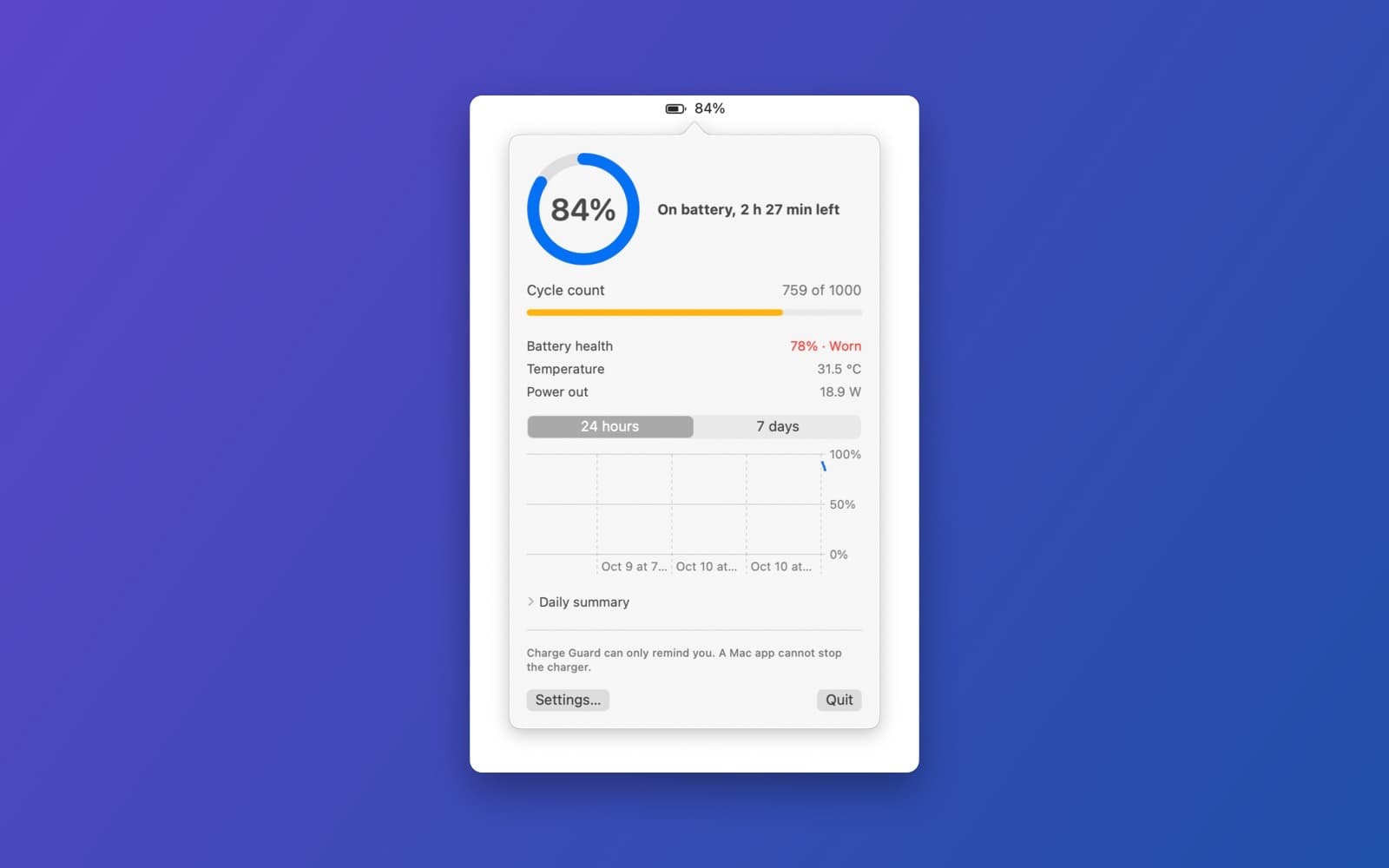
Charge Guard sits in your menu bar and watches your laptop battery. It shows the charge, the battery's health and its cycle count, and alerts you at the charge level you choose, so you remember to unplug at 80%.
What it does
- Live battery details. The menu bar shows the percentage or just an icon, and a click opens a popover with a charge ring, the state in words ("On battery, 2 h 27 min left"), cycle count out of 1000, battery health with a Good, Fair or Worn label, temperature and power in or out in watts.
- Alerts you set. A charge-limit alert (80% by default, with optional repeats), a low-battery alert, a plugged-in-too-long alert and a Low Power Mode reminder, with sounds, quiet hours and Snooze.
- History. A chart of the last 24 hours or 7 days with the charge-limit line drawn in yellow, a per-day charging summary with the average charge level, and Export History as CSV.
- Menu bar tooltip. Hover over the icon to see health and cycle count.
Notes
Charge Guard can only remind you. A Mac app cannot stop the charger itself, and the app says so. It reads the battery with IOKit and needs no special permission, except notification permission for the alerts. It was built through silicondevkit.com in four versions from one prompt and three follow-ups. We launched this build on a MacBook and checked that the popover shows the battery readout; alert delivery, Snooze, sleep and wake handling and Launch at Login were not tested.
Information
- Developer
- SiliconDevKit (generated by AI from a prompt)
- Category
- Productivity
- Compatibility
- macOS 13 or later, Apple silicon. Apple silicon Macs only (M1 or later), not Intel
- Size
- 0.4 MB (.dmg)
- Latest version
- 1.3
- Price
- Free
- Signing
- Ad-hoc signed, not notarized
The prompt behind it
This app was generated from the prompt below. Paste it into SiliconDevKit to build your own version, then change it however you like.
Build a Mac menu bar app called Charge Guard. It watches your laptop battery, shows its health and cycle count, and alerts you at the charge level you choose (for example 80% when charging), when you have been plugged in too long, and when the battery gets low. It can only alert you: a Mac app cannot stop the charger itself, and the app says so. THE APP - A menu bar app with no Dock icon (NSApp.setActivationPolicy(.accessory)). The menu bar item shows the battery percentage (a setting turns it into just an icon), the icon changes with the state (charging, on battery, full, plugged in but not charging), and a click opens a popover (about 340 points wide) with the details. On a Mac with no battery, say "No battery found" and stay quiet. - Read the battery with IOKit, with no special permission: - Live state from IOPSCopyPowerSourcesInfo and IOPSCopyPowerSourcesList (percentage, charging, plugged in, time to full or empty, power source name), updated through IOPSNotificationCreateRunLoopSource so there is no polling. - Details from the AppleSmartBattery registry entry (IOServiceGetMatchingService with IOServiceMatching("AppleSmartBattery"), then IORegistryEntryCreateCFProperties): CycleCount, the design capacity (DesignCapacity) and the current full-charge capacity (AppleRawMaxCapacity, or NominalChargeCapacity, or MaxCapacity: use the first that is present and sensible), Temperature (divide by 100 for degrees Celsius), Voltage, Amperage (the power in watts is volts times amps), and the adapter's watts from AdapterDetails when present. Compute Battery Health = full-charge capacity divided by design capacity (as a percent), and show it with a label (Good above 90, Fair 80 to 90, Worn below 80). Read every key defensively: a missing key hides that line. Never crash on a different Mac model. - The popover shows: a big percentage ring, the state in words ("Charging, 1 h 12 min to full"), the cycle count with the rated limit of 1000 as a bar, health, temperature, power in or out in watts, adapter watts, how long the Mac has been plugged in, and a chart (Swift Charts, macOS 13) of the percentage over the last 24 hours (and a 7 day view), made from samples saved once a minute and on every change in a small JSON file in Application Support (keep 30 days, then drop the oldest). - Alerts, delivered as notifications (UNUserNotificationCenter; ask for permission the first time the user turns an alert on, and explain why): 1. Charge limit: when charging reaches the chosen percent (default 80), say "Battery is at 80%. Unplug to keep it healthy." Repeat every 5 minutes up to 3 times, or never repeat (a setting), and reset when it is unplugged. 2. Low battery: when on battery and under the chosen percent (default 20), say "Battery is at 20%. Plug in soon." 3. Plugged in too long: when the Mac has been plugged in and above the charge limit for more than the chosen number of hours (default 8), say it, so a laptop that sits on a desk can be unplugged. 4. Health: once, when health falls below 80%. Each alert has a sound option, can be switched on and off, and respects quiet hours (a time range, default off). A "Snooze 1 hour" action button in the notification. Never send an alert that is already satisfied when the app starts. - Settings window: the thresholds above, the notification sound, quiet hours, show the percentage in the menu bar, show the time remaining, Launch at Login (SMAppService.mainApp), and a Reset History button. A short note in Settings: "macOS may also hold charging at 80% itself (Optimized Battery Charging, System Settings, Battery). Charge Guard can only remind you; it cannot control charging." QUALITY - Use almost no CPU or memory: no timers faster than once a minute besides the IOKit notifications. Handle sleep and wake (take a sample on wake and do not fire stale alerts), a changing power source and a missing battery. - Keep the code modular: a BatteryReader (IOKit), a HistoryStore, an AlertEngine with a small state machine, the notification layer, the popover views and the settings. Only Apple frameworks, no Xcode project or asset catalog. Target macOS 13. - Do not fake anything: no invented numbers. In your reply, say in a few sentences what works and what you could not test, such as the registry keys on different Mac models.
What it cost
Every AI run that made this demo, one per line. Model: Claude Sonnet 5.5. Tokens are shown as (in / out). “In” counts everything the model read, including text it had already seen in the session at a reduced price.
| Initial prompt(271k in / 39k out) | 63 credits | |
| + | Follow-up 1(280k in / 10k out) | 22 credits |
| + | Follow-up 2(233k in / 2k out) | 8 credits |
| + | Follow-up 3(239k in / 1k out) | 7 credits |
| = | Total(1.02M in / 51k out) | 100 credits |
Credits are what a build uses on your plan. This counts AI usage only: hosting and the Mac that compiled it are not included. This demo took 4 attempts, and all of them are counted.
Version tree
Every change to this app is a new version. Use any build as a template to start your own copy from it; forks that their makers shared appear as branches.
Version 1.0Oct 10, 2026
Build a Mac menu bar app called Charge Guard. It watches your laptop battery, shows its health and cycle count, and alerts you at the charge level you choose (for example 80% when charging), when you have been plugged in too long, and when the battery gets low. It can only alert you: a Mac app cannot stop the charger itself, and the app says so. THE APP - A menu bar app with no Dock icon (NSApp.setActivationPolicy(.accessory)). The menu bar item shows the battery percentage (a setting turns it into just an icon), the icon changes with the state (charging, on battery, full, plugged in but not charging), and a click opens a popover (about 340 points wide) with the details. On a Mac with no battery, say "No battery found" and stay quiet. - Read the battery with IOKit, with no special permission: - Live state from IOPSCopyPowerSourcesInfo and IOPSCopyPowerSourcesList (percentage, charging, plugged in, time to full or empty, power source name), updated through IOPSNotificationCreateRunLoopSource so there is no polling. - Details from the AppleSmartBattery registry entry (IOServiceGetMatchingService with IOServiceMatching("AppleSmartBattery"), then IORegistryEntryCreateCFProperties): CycleCount, the design capacity (DesignCapacity) and the current full-charge capacity (AppleRawMaxCapacity, or NominalChargeCapacity, or MaxCapacity: use the first that is present and sensible), Temperature (divide by 100 for degrees Celsius), Voltage, Amperage (the power in watts is volts times amps), and the adapter's watts from AdapterDetails when present. Compute Battery Health = full-charge capacity divided by design capacity (as a percent), and show it with a label (Good above 90, Fair 80 to 90, Worn below 80). Read every key defensively: a missing key hides that line. Never crash on a different Mac model. - The popover shows: a big percentage ring, the state in words ("Charging, 1 h 12 min to full"), the cycle count with the rated limit of 1000 as a bar, health, temperature, power in or out in watts, adapter watts, how long the Mac has been plugged in, and a chart (Swift Charts, macOS 13) of the percentage over the last 24 hours (and a 7 day view), made from samples saved once a minute and on every change in a small JSON file in Application Support (keep 30 days, then drop the oldest). - Alerts, delivered as notifications (UNUserNotificationCenter; ask for permission the first time the user turns an alert on, and explain why): 1. Charge limit: when charging reaches the chosen percent (default 80), say "Battery is at 80%. Unplug to keep it healthy." Repeat every 5 minutes up to 3 times, or never repeat (a setting), and reset when it is unplugged. 2. Low battery: when on battery and under the chosen percent (default 20), say "Battery is at 20%. Plug in soon." 3. Plugged in too long: when the Mac has been plugged in and above the charge limit for more than the chosen number of hours (default 8), say it, so a laptop that sits on a desk can be unplugged. 4. Health: once, when health falls below 80%. Each alert has a sound option, can be switched on and off, and respects quiet hours (a time range, default off). A "Snooze 1 hour" action button in the notification. Never send an alert that is already satisfied when the app starts. - Settings window: the thresholds above, the notification sound, quiet hours, show the percentage in the menu bar, show the time remaining, Launch at Login (SMAppService.mainApp), and a Reset History button. A short note in Settings: "macOS may also hold charging at 80% itself (Optimized Battery Charging, System Settings, Battery). Charge Guard can only remind you; it cannot control charging." QUALITY - Use almost no CPU or memory: no timers faster than once a minute besides the IOKit notifications. Handle sleep and wake (take a sample on wake and do not fire stale alerts), a changing power source and a missing battery. - Keep the code modular: a BatteryReader (IOKit), a HistoryStore, an AlertEngine with a small state machine, the notification layer, the popover views and the settings. Only Apple frameworks, no Xcode project or asset catalog. Target macOS 13. - Do not fake anything: no invented numbers. In your reply, say in a few sentences what works and what you could not test, such as the registry keys on different Mac models.
A menu bar battery watcher that shows health and cycle count and reminds you when to unplug or plug in.
Version 1.1Oct 10, 2026
Add a low-power-mode reminder when battery is under 30% Show a per-day charging summary with average charge level
A menu bar battery watcher that shows health and cycle count and reminds you when to unplug or plug in.
Version 1.2Oct 10, 2026
Let me export battery history as a CSV file Add a menu bar tooltip with health and cycle count
A menu bar battery watcher that shows health and cycle count and reminds you when to unplug or plug in.
Version 1.3Oct 10, 2026
Show the charge-limit line on the history chart (make the line yellow)
A menu bar battery watcher that shows health and cycle count and reminds you when to unplug or plug in.
Opening it for the first time
- Open the .dmg and drag Charge Guard onto the Applications folder.
- Open it from Applications. macOS may say it can’t check the app for malicious software. Click Done.
- Open System Settings → Privacy & Security and click Open Anyway. This is needed once. Why this happens. To share an app without the warning, see how to notarize it.
You might also like
 Get
GetPlayTube
Paste a video link and watch it in a clean player, with no ads.
 Get
GetAdMute
Listens to your Mac's audio and mutes the ads, then brings the sound back.
 Get
GetToob-Downer
Paste a video link and save the video to your Mac, with a queue to keep track.
 Get
GetAgent Swarm
Send one task to Claude, Gemini and Hermes at once.